Blogs

How Much Does a BI Dashboard Cost in 2025?

As organizations continue to rely on data for decision-making in 2025, Business Intelligence (BI) dashboards have become indispensable. Whether you're a startup or an established enterprise, understanding the cost of implementing a BI dashboard is critical for planning and budgeting.


Common BI Dashboard Pricing Models

This guide highlights the latest pricing models and includes real-time pricing from Dashboard Builder—a powerful tool for building customizable dashboards for cloud, desktop, and on-premises environments.

Common BI Dashboard Pricing Models

  • Subscription-Based (SaaS): Monthly or annual recurring fees, typically per user or per feature.
  • Perpetual License: One-time payment, usually for on-premises or desktop installations.
  • Cloud vs On-Premises: Cloud-based solutions are operational expenses (OPEX); on-premises options are capital expenditures (CAPEX).

Dashboard Builder Pricing in 2025

On-Premises License

Compatible with Windows, Linux, or Ubuntu, and deployable on servers running Apache, Nginx, LAMP, WAMP, or XAMP stacks. Export dashboards as PNG or generate PHP code for flexible distribution.

  • Kick Starter — $96.00
  • BASIC — $250.00
  • PRO — $800.00
  • ENTERPRISE — $2,986.00

Windows Desktop License

Install directly on any Windows 7+ machine without needing a web server or internet. Perfect for local data analysis with complete offline access.

  • BASIC — $144.00
  • PRO — $288.00
  • ENTERPRISE — $733.00

Online Cloud Subscription

Access Dashboard Builder from anywhere with cloud-based hosting. Generate HTML code to embed dynamic dashboards directly into your website.

  • Monthly — $10.00/month
  • Yearly — $100.00/year

For full details, visit the official pricing page.

Why Pricing Transparency Matters

Startups and mid-sized teams don’t have the luxury of ambiguous pricing. Tools like Dashboard Builder are upfront about their costs, allowing you to compare plans and commit only when ready. Whether you want to self-host or deploy via cloud, pricing clarity helps in budgeting and procurement approvals.

Conclusion

The cost of a BI dashboard in 2025 is shaped by your deployment model, scalability needs, and licensing preference. With options ranging from $10/month to $2,986 for a full enterprise on-prem license, Dashboard Builder gives teams the flexibility to start small and grow confidently.

Want to explore all pricing tiers? Check Dashboard Builder pricing here.

DashboardBuilder vs Power BI (2025 Comparison Guide)

TL;DR: DashboardBuilder is a lightweight, self-hosted and on-premises friendly dashboard tool designed for quick setup, customization, and cost-effectiveness. Power BI, on the other hand, is a full enterprise-grade analytics platform with deep integrations in the Microsoft ecosystem. If you want flexibility, ownership, and simplicity, DashboardBuilder is ideal; if you need enterprise-scale features, Power BI may be the better fit.


Dashboard Builder vs Power BI Feature Comparison

Introduction

Business Intelligence (BI) tools in 2025 are critical for organizations that want to make data-driven decisions. With so many options available, direct comparisons help teams understand trade-offs in cost, deployment, usability, and integrations. This guide compares DashboardBuilder and Microsoft Power BI to help you decide which tool best fits your needs.

Overview of DashboardBuilder

DashboardBuilder is a flexible dashboard creation tool that allows businesses to design interactive dashboards without heavy setup or licensing costs. It supports multiple deployment options including on-premises, desktop, and cloud, giving teams full control over where their data and applications reside. With its drag-and-drop designer and built-in SQL query builder, users can connect directly to a variety of data sources such as MySQL, MS SQL, PostgreSQL, and Oracle. The generated dashboards can be seamlessly embedded into PHP applications or exported as universal HTML for wider compatibility.

Overview of Power BI

Microsoft Power BI is a leading enterprise-grade business intelligence platform that integrates deeply with the Microsoft ecosystem, including Excel, Azure, and Office 365. It is designed for organizations that need advanced analytics, real-time reporting, and enterprise governance features. Power BI offers strong data modeling, AI-powered insights, and a large collection of built-in connectors to almost every major business data source. Its cloud-first approach makes it ideal for enterprises that already rely on Microsoft tools and want a scalable analytics solution with broad adoption across business units.

Feature Comparison

DashboardBuilder and Power BI both serve the purpose of turning data into insights, but they differ in scope and usability. DashboardBuilder is designed to be lightweight, affordable, and easy to deploy across cloud, desktop, or on-premises setups, making it ideal for quick, customizable dashboards without a steep learning curve. Power BI, on the other hand, offers a more feature-rich, enterprise-level solution with advanced analytics and deep integration into the Microsoft ecosystem, but it comes with higher costs and a steeper learning curve. The table below highlights their differences side by side.


Feature DashboardBuilder Power BI
Deployment Available as Cloud, Desktop, and On-Premises installation. Users have full flexibility to host it on their own infrastructure. Primarily Cloud-based (Power BI Service), with Desktop app for authoring and Premium options for enterprise on-premises deployment.
Ease of Use Simple drag-and-drop dashboard builder, designed for quick setup without steep learning curves. Feature-rich but more complex, requiring training and familiarity with Microsoft BI stack.
Pricing One-time license with affordable plans starting from free download version, no recurring heavy subscription costs. Subscription-based, starting from Power BI Pro ($10–$20 per user/month) with Premium costing significantly more.
Integrations Direct connections to MySQL, MS SQL, Oracle, PostgreSQL, and can embed in any PHP or HTML application. Hundreds of prebuilt connectors, especially strong with Microsoft apps (Excel, Azure, Dynamics 365, Teams).
AI/NLP Features Supports AI-powered natural language query to generate dashboards and charts instantly. Includes Microsoft Copilot AI integration, Q&A natural language queries, and predictive insights.

Pros and Cons

DashboardBuilder Pros

  • Lightweight and easy to set up, no enterprise-scale overhead.
  • One-time purchase option with no costly recurring subscriptions.
  • Can be embedded seamlessly into PHP-based applications.
  • Works offline or online, giving deployment flexibility.

DashboardBuilder Cons

  • Smaller ecosystem compared to Power BI, fewer out-of-the-box connectors.
  • Best suited for SMBs and developers rather than very large enterprise BI governance needs.

Power BI Pros

  • Strong enterprise adoption with deep integration into Microsoft ecosystem.
  • Large library of connectors and strong support for big data sources.
  • Advanced analytics, machine learning, and AI-powered insights.
  • Continuous updates and community support from Microsoft.

Power BI Cons

  • Subscription costs add up quickly, especially at enterprise scale.
  • Steeper learning curve, often requiring Power Users or IT support.
  • Heavy reliance on Microsoft ecosystem; less flexible for standalone or non-Microsoft environments.

Best For (Use Cases)

While both DashboardBuilder and Power BI serve the purpose of turning raw data into actionable insights, they are designed with different audiences and scenarios in mind. Choosing between them depends on your business size, technical environment, and long-term strategy.

When to Use DashboardBuilder

  • Small to Medium Businesses (SMBs): Ideal for companies that need powerful dashboards without the heavy cost of enterprise software licensing.
  • Custom Web Applications: Perfect for developers who want to embed dashboards directly into their PHP, HTML, or web applications without relying on third-party cloud hosting.
  • On-Premises or Hybrid Environments: A strong choice for organizations that require full control of their data on their own servers due to compliance or security policies.
  • Quick Setup Needs: Works well for businesses that need fast, drag-and-drop dashboards without lengthy onboarding or training.
  • Cost-Conscious Deployments: Best for teams that prefer a one-time purchase option rather than recurring per-user subscription fees.
  • Developers & IT Teams: Especially useful for IT professionals or software vendors who need to integrate customizable dashboards into client-facing systems.

When to Use Power BI

  • Large Enterprises: Designed for organizations that already use Microsoft products like Azure, Office 365, and Dynamics, making integration seamless.
  • Advanced Analytics: Best suited for teams that need machine learning, AI-driven insights, and advanced data modeling capabilities.
  • Cross-Departmental Reporting: Strong choice for large organizations where multiple departments need standardized BI tools and governance controls.
  • Big Data Scenarios: Handles very large datasets with ease, connecting to a wide range of data sources including cloud-based data lakes.
  • Collaborative Reporting: Useful when different stakeholders (executives, analysts, operational teams) need shared access to reports and dashboards in the cloud.
  • Global Teams: Great for multinational companies that rely on cloud-based collaboration and need scalability across hundreds or thousands of users.

In summary, DashboardBuilder is best for developers, SMBs, and organizations that need affordable, embeddable, and flexible dashboards, while Power BI is better suited for enterprises with advanced analytics needs and heavy reliance on the Microsoft ecosystem. Both tools are powerful, but their best use cases differ based on scale, complexity, and integration needs.

Conclusion

Both DashboardBuilder and Power BI are powerful business intelligence tools, but they cater to different needs. DashboardBuilder shines when you need a lightweight, affordable, and flexible solution that can be deployed on-premises, in the cloud, or embedded into custom applications. On the other hand, Power BI is better suited for enterprises deeply invested in the Microsoft ecosystem and looking for advanced analytics, AI-driven insights, and large-scale collaboration. The right choice depends on your priorities—whether you value simplicity and cost-effectiveness or enterprise-grade features and ecosystem integration.

FAQs

Which is easier to use, DashboardBuilder or Power BI?

DashboardBuilder is generally easier to use for beginners, thanks to its simple drag-and-drop interface and lightweight design. Power BI offers more features but comes with a steeper learning curve, especially for users unfamiliar with Microsoft tools.

Does DashboardBuilder integrate with Excel/SQL?

Yes. DashboardBuilder supports direct connections with Excel, CSV, MySQL, SQL Server, Oracle, and other popular databases, making it easy to visualize data from existing systems.

Is Power BI free?

Power BI offers a free desktop version with limited sharing capabilities. For collaboration, advanced analytics, and enterprise deployment, you’ll need a paid plan such as Power BI Pro or Power BI Premium.

Which is better for startups, DashboardBuilder or Power BI?

Startups often prefer DashboardBuilder because of its affordable pricing, flexibility, and quick deployment options. However, if the startup already relies heavily on Microsoft tools like Azure, Excel, or Teams, then Power BI may be the better long-term fit.

Last updated: August 18, 2025 — Author: Jason Carter

No Code Data Visualization

What is no code data visualization? how do you visualize data without coding


No Code Data Visualization

What is no code data visualization?

No code data visualization enables you to create engaging charts, graphics, and dashboards without writing any code. It works by using a drag-and-drop user interface to create a cutting-edge visualization that is simple to use.

Coding is not required for data visualization and analysis. Data analysis necessitates the examination of data and the drawing of conclusions. To easily create interactive data visualization, you don't need to write any code. In this article, we will show you the best no-code tool that is simple to use, has a great graphic design, is interactive, and has additional features to make your visualization more presentable.

Data visualization does not necessarily require coding knowledge. Dashboard Builder is the best tool for creating beautiful data visualization with no coding required.


How do you visualize data without coding?


No Code Data Visualization tool

No-code data visualization, as opposed to traditional computer programming, allows programmers and non-programmers to visualize data using drag-and-drop graphical user interfaces and setup.

We'll show you how to use the dashboard builder's no-code feature to visualize data without writing any code in this post. Visualizing completely unique data has traditionally required the services of one or more experienced software engineers. However, as the no-code landscape evolves, makers all over the world are finding it easier than ever to visualize their own complex data, chart, and graph.

Dashboards can take various forms depending on the data displayed and the end use case. With features such as design flexibility, data visualization, and integration, the Dashboard Builder is the ideal visualization tool for supporting the changing requirements of a bespoke dashboard. This guide provides important advice and resources to consider as you begin building your app, whether you're attempting to create a highly visible tool for your internal team or are just getting started with the Dashboard Builder.

No Code Data Visualization Tutorial

Learn how to visualize data with no code and generate source code for interactive and dynamic graphs

APPLIES TO:    On-premises    Online   Desktop

In this article, we'll use the Dashboard Builder Tool to create a chart and retrieve data from a MySQL database, as well as generate source code.


Requirements

  • PHP Version 7.2 or later
  • Apache 2 or later
  • Windows 7 or later /Linux 3 or later
  • Firefox 52, Chrome 57, IE 8

Installation

  • Download from Download Dashboard Builder
  • Place the file in a directory on the web server. e.g. …/www/dashboar/dbuilder/
  • Unzip zip filethe file using Extract Here option to the root folder of "dashboardbuilder"
STEP-1: Launch the Data Visualization tool

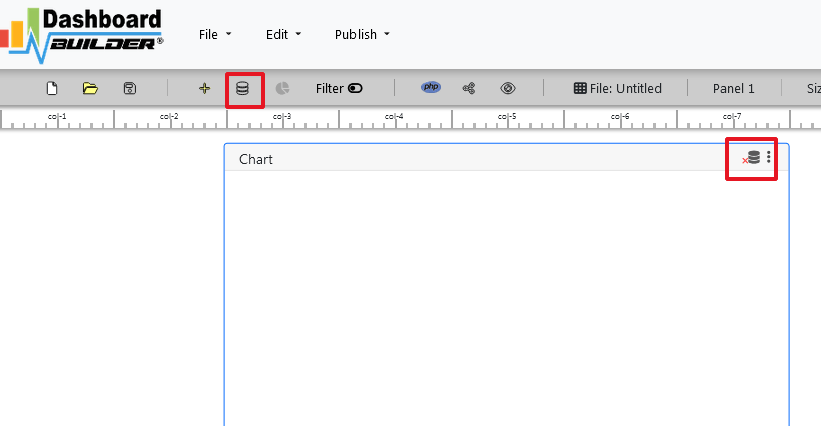
Welcome Screen


STEP-2: Access the data


  • Now Click the Database icon
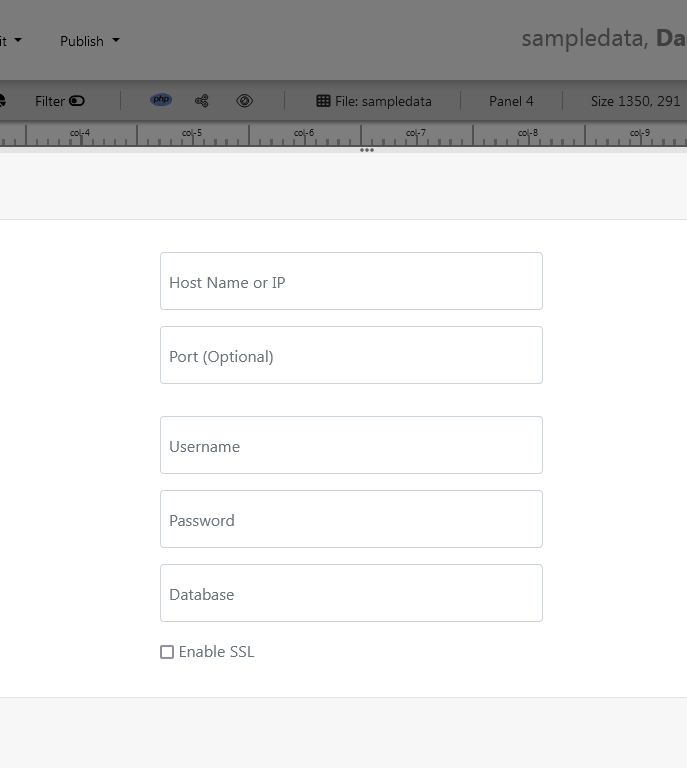
  • Following screen will appear. Select Database from data source tab. Select MySQL from the list of Database, Enter your "Northwind.db" in the DB name field and Save changes as mentioned in the screen.

Select your Database

  • Enter user name and password of your database.
  • A green tick mark with Database will appear when your database is successfully connected.

Dashboard Preference


STEP-3: Assign data


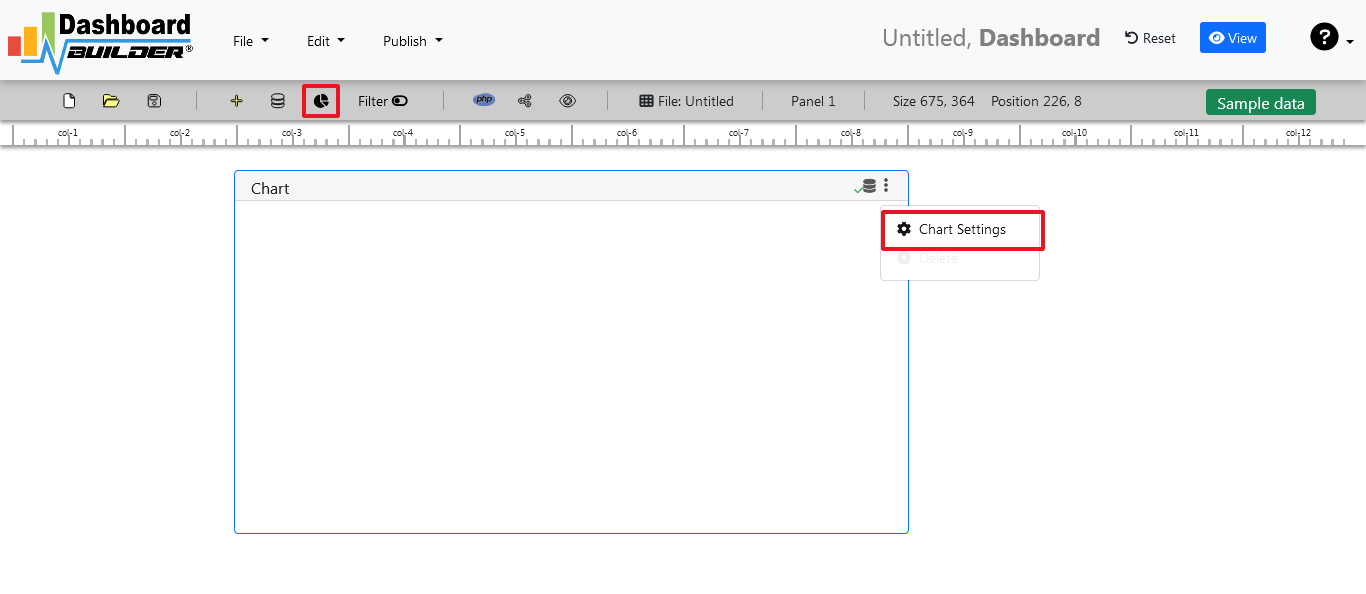
  • Select the gear icon for your Dashboard preference.

Database Connected

  • The following screen with a list of tables will appear.

Chart Preference

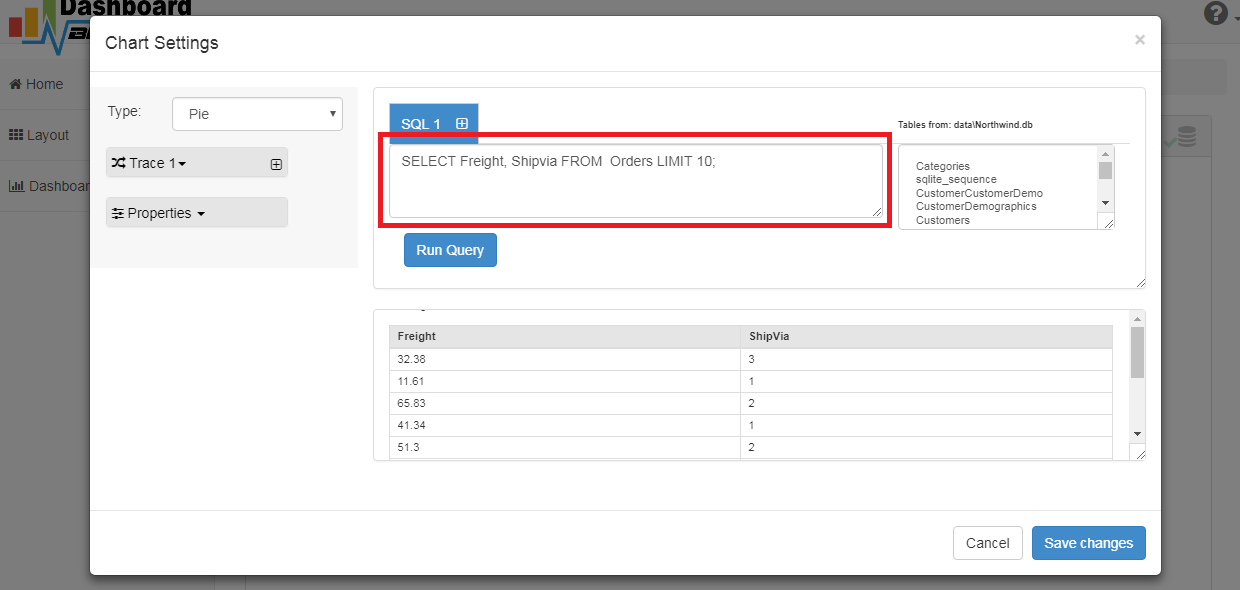
  • Enter your SQL statement in text box,

SELECT strftime('%Y-%m',o.shippeddate) as xaxis, sum(d.quantity) as yaxis from `order details` d, orders o where o.orderid = d.orderid group by strftime('%Y-%m',o.orderdate) limit 50

  • Click the Run Query button
SQL Statement


STEP-4: Select the row and column


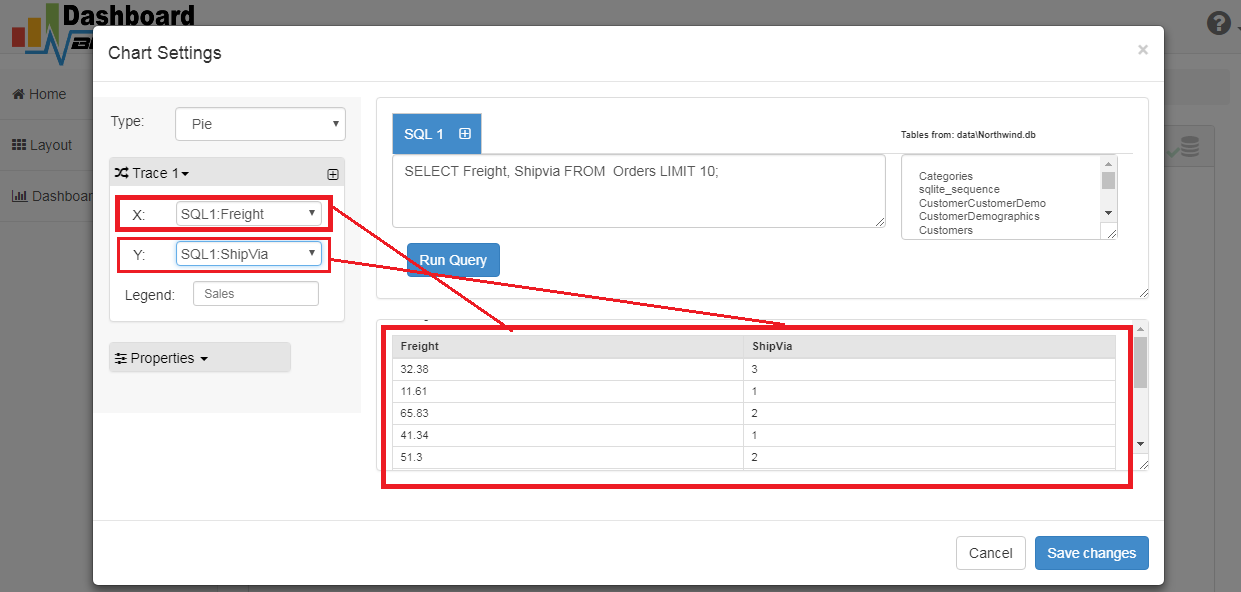
  • Query Result will appear. Now Select your x-axis data from the drop down list of X and y-axis data from the drop down list of Y .
  • Select Pie from the drop down list of Chart Type
  • Click Save Changes

SQL Query Result

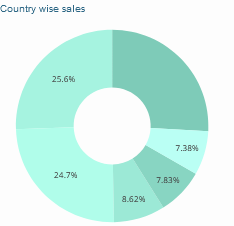
  • Charts will be shown on the screen as below.

Chart Preference screen3


STEP-5: Generate the source code


  • Now extend the Generate   button and click on the Create PHP Code


  • The chart's code will be created automatically, and you may copy and paste it into your PHP application.

Data Visualization's source code


/**
 * DashboardBuilder
 *
 * @author Diginix Technologies www.diginixtech.com
 * Support  - http://www.dashboardbuilder.net
 * @copyright (C) 2018 Dashboardbuilder.net
 * @version 2.1.7
 * @license: license.txt
 */

include("inc/dashboard_dist.php");  // copy this file to inc folder 


// for chart #1
$data = new dashboardbuilder(); 
$data->type =  "pie";

$data->source =  "Database"; 
$data->rdbms =  "mysql"; 
$data->servername =  "";
$data->username =  "";
$data->password =  "";
$data->dbname =  "northwind";
$data->xaxisSQL[0]=  "SELECT strftime(^%Y-%m^,o.shippeddate) as xaxis, sum(d.quantity) as yaxis from `order details` d, orders o  where o.orderid = d.orderid group by strftime(^%Y-%m^,o.orderdate) limit 50";
$data->xaxisCol[0]=  "xaxis";
$data->yaxisSQL[0]=  "SELECT strftime(^%Y-%m^,o.shippeddate) as xaxis, sum(d.quantity) as yaxis from `order details` d, orders o  where o.orderid = d.orderid group by strftime(^%Y-%m^,o.orderdate) limit 50";
$data->yaxisCol[0]=  "yaxis";
$data->name = "piechart";
$data->title = "Pie Chart";
$data->orientation = "";
$data->xaxistitle = "x-axis title";
$data->yaxistitle = "y-axis title";
$result[0] = $data->result();

?>

<!DOCTYPE html>
<html> 
<head> 
	<script src="assets/js/dashboard.min.js"></script> <!-- copy this file to assets/js folder --> 
	<!--<link rel="stylesheet" href="assets/css/bootstrap.min.css"> Bootstrap CSS file, change the path accordingly --> 


</head>
<body> 

<div class="container">
<div class="col-lg-12">
<div class="panel panel-default">
<div class="panel-heading"></div>
    <div class="panel-body">
        <?php echo $result[0];?>
    </div>
</div>
</div>
</div>
</body>


Sample data visualization

Whether you're looking for inspiration or just want to take a quick look at your clients, a pre-made sample page can get your project started. Visualizing data and graphs in web applications has never been easier.


Sample data visualization

Conclusion

You've learned how to visualize data with no code application, , and customize it's look and feel using the dashboard builder. Before we go, we'd like to introduce you to the premium version of Dashboard Builder, which has many features compared to the free version.


Are you ready to try your hand at No code Data Visualization tool ? Try No code Data Visualization !

SaaS Dashboard — Free, Cloud-Based (No Credit Card)

Build interactive cloud dashboards, ask questions in natural language, and embed live visualizations — all free with no credit card required.

Create and share interactive dashboards directly in the cloud. Ask questions in natural language, connect live data sources, and embed visualizations into your apps or reports. No downloads, no setup, and no credit card required.

  • ✅ 100% Online
  • ✅ Real-Time Analytics
  • ✅ Smart AI Queries
  • ✅ Free Forever

SaaS Dashboard Builder

Start Free — No Credit Card

TL;DR

Our SaaS Dashboard is a free, cloud-based tool to build and share dashboards without installing software or providing a credit card. Get instant insights with AI-powered Smart Query and one-click embedding.

What is a SaaS Dashboard?

A SaaS dashboard is a cloud-hosted analytics platform that visualizes real-time data from multiple sources in one place. Unlike traditional software, it runs entirely online, so there’s no need for installation, updates, or IT overhead. Users can log in from any browser, collaborate across teams, and make data-driven decisions instantly.

These dashboards are particularly valuable for startups, businesses, and enterprises that need flexible, scalable reporting tools without upfront costs. With AI-powered queries, customizable charts, and secure cloud storage, SaaS dashboards simplify the way organizations monitor KPIs, track performance, and share insights.

Why Choose a Cloud SaaS Dashboard?

  • Free to start: No credit card required
  • AI-powered: Ask questions in natural language
  • Easy embedding: Share via HTML, iframe, or script
  • Secure: Encrypted data and role-based access
  • Scalable: Suitable for startups, SMEs, and enterprises

Quick Start in 3 Steps

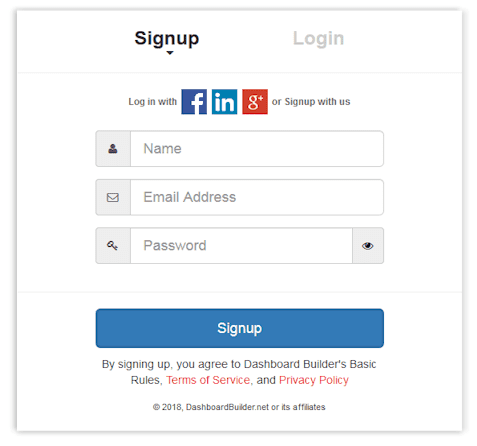
  1. Sign up free — no credit card required.

  2. SaaS Dashboard Login

  3. Connect your data source (MySQL, Postgres, CSV, Google Sheets, API).

  4. SaaS Dashboard Database Connection

  5. Ask a question or pick a chart template — your SaaS dashboard is live.

Use Cases

SaaS dashboards can be adapted to fit a wide range of business functions. Whether you’re a startup tracking growth, a marketing team monitoring campaigns, or a finance team ensuring profitability, dashboards provide real-time clarity and collaboration without the need for complex setup.

Startups

Startups can track product adoption, churn, and runway in real time. Instead of juggling spreadsheets, founders gain a clear view of progress that helps them stay agile, attract investors, and pivot quickly when needed.

Marketing Teams

Marketing teams can monitor campaigns, track leads through funnels, and measure ROI instantly. Dashboards make it easy to adjust strategies, optimize budgets, and connect efforts directly to business growth.

Finance Teams

Finance professionals get real-time insights into revenue, expenses, and profitability. Dashboards help detect anomalies early, improve forecasting, and support informed decision-making with reliable data.

Frequently Asked Questions

Yes, it’s completely free to use and doesn’t require a credit card to get started.
Absolutely. You can generate HTML or iframe snippets to seamlessly embed dashboards into your website, blog, or web app.
You can connect to MySQL, PostgreSQL, Google Sheets, CSV files, and even external APIs, giving you flexibility with your data.
Yes. With Smart Query, you can type natural language questions and instantly see the results as charts and insights—no coding required.

Start Free — No Credit Card

Further Reading & Sources


Last updated: September 10, 2025

Written by George — IT professional and dashboard specialist. Learn more at DashboardBuilder.net

How helpful was this information?

Performance metrics dashboard - the one and only dashboard you'll ever require to keep track of your business performance!


Performance metrics dashboard

The performance metrics dashboard is a digital display of collected data. Charts, graphs, tables, and percentages may be included in these displays to help you better understand a specific area of your organization. Metrics performance dashboard tool is a piece of software or a web application that collects data from various sources and transforms it into visual forms. For example, suppose you have a list of customer ages, and your dashboard tool generates a pie graph showing the percentage of customers in various age groups.


Performance metrics Dashboard Overview

A performance Metrics dashboard allows you and your team to monitor the efficacy of various metrics, campaigns, and processes. As a result, you can improve your plans and act on data in real time. These performance metrics are essential for analyzing and evaluating a company's sales, human resources, marketing, and operational activities.

The performance metrics dashboard is the only application that can be designed to filter out unwanted information in order to keep your performances at the forefront of your mind and relevant to your intended audience. A Dashboard application's performance metrics is compelling. It can be used to connect to multiple data sources and provide users with visibility by presenting information in a timely, meaningful, and actionable format. Users can also search, drill down, and even update the presented information, saving time, streamlining workflow, maintaining record accuracy, and focusing user actions on the positive outcome of key metrics.


What is a performance metrics dashboard used for?

Performance metrics dashboards are used to assess a company's behavior, activities, and performance. This should take the form of data that measures required data within a range, allowing for the formation of a foundation to support the achievement of overall business goals. Measuring performance with metrics is critical for determining how well business objects are performing and whether targets are being met.


Is Performance metrics Dashboard FREE?

To unlock the value of your data and inspire better business decisions, use performance metrics dashboards and engaging reports. It's easy and free.


Benefits of using a performance metrics dashboards

The key advantage of utilizing a performance metrics dashboard is that it enables you to track the effectiveness of various plans, campaigns, and procedures, enabling you to modify your strategies promptly.


A simple performance metrics dashboard example


Performance metrics dashboard  step 2

You can quickly monitor your most crucial business performance metrics on one page by connecting your data sources to this business performance metrics dashboard. You won't need to switch between platforms because everything, including conversion rates and the amount of new clients, will be visible at a glance.


How to create a performance metrics dashboard

Learn how to visualize performance metrics with this great data visualization tool and generate source code

APPLIES TO:    On-premises    Online   Desktop

In this article, we'll use the Dashboard Builder Tool to retrieve data from a MySQL database and create a performance metrics dashboard, as well as generate source code.


Requirements

  • PHP Version 7.2 or later
  • Apache 2 or later
  • Windows 7 or later /Linux 3 or later
  • Firefox 52, Chrome 57, IE 8

Installation

  • Download from Download Dashboard Builder
  • Place the file in a directory on the web server. e.g. …/www/dashboar/dbuilder/
  • Unzip zip filethe file using Extract Here option to the root folder of "dashboardbuilder"
STEP-1: Launch the Data Visualization tool

Welcome Screen


STEP-2: Access the data


  • Now Click the Database icon
  • Following screen will appear. Select Database from data source tab. Select MySQL from the list of Database, Enter your "Northwind.db" in the DB name field and Save changes as mentioned in the screen.

Select your Database

  • Enter user name and password of your database.
  • A green tick mark with Database will appear when your database is successfully connected.

Dashboard Preference


STEP-3: Assign data


  • Select the gear icon for your Dashboard preference.

Database Connected

  • The following screen with a list of tables will appear.

Chart Preference

  • Enter your SQL statement in text box,

SELECT strftime('%Y-%m',o.shippeddate) as xaxis, sum(d.quantity) as yaxis from `order details` d, orders o where o.orderid = d.orderid group by strftime('%Y-%m',o.orderdate) limit 50

  • Click the Run Query button
SQL Statement


STEP-4: Select the row and column


  • Query Result will appear. Now Select your x-axis data from the drop down list of X and y-axis data from the drop down list of Y .
  • Select Pie from the drop down list of Chart Type
  • Click Save Changes

SQL Query Result

  • Charts will be shown on the screen as below.

Chart Preference screen3


STEP-5: Generate the source code


  • Now extend the Generate   button and click on the Create PHP Code


  • The chart's code will be created automatically, and you may copy and paste it into your PHP application.

Performance metrics dashboard's source code


/**
 * DashboardBuilder
 *
 * @author Diginix Technologies www.diginixtech.com
 * Support  - http://www.dashboardbuilder.net
 * @copyright (C) 2018 Dashboardbuilder.net
 * @version 2.1.7
 * @license: license.txt
 */

include("inc/dashboard_dist.php");  // copy this file to inc folder 


// for chart #1
$data = new dashboardbuilder(); 
$data->type =  "pie";

$data->source =  "Database"; 
$data->rdbms =  "mysql"; 
$data->servername =  "";
$data->username =  "";
$data->password =  "";
$data->dbname =  "northwind";
$data->xaxisSQL[0]=  "SELECT strftime(^%Y-%m^,o.shippeddate) as xaxis, sum(d.quantity) as yaxis from `order details` d, orders o  where o.orderid = d.orderid group by strftime(^%Y-%m^,o.orderdate) limit 50";
$data->xaxisCol[0]=  "xaxis";
$data->yaxisSQL[0]=  "SELECT strftime(^%Y-%m^,o.shippeddate) as xaxis, sum(d.quantity) as yaxis from `order details` d, orders o  where o.orderid = d.orderid group by strftime(^%Y-%m^,o.orderdate) limit 50";
$data->yaxisCol[0]=  "yaxis";
$data->name = "piechart";
$data->title = "Pie Chart";
$data->orientation = "";
$data->xaxistitle = "x-axis title";
$data->yaxistitle = "y-axis title";
$result[0] = $data->result();

?>

<!DOCTYPE html>
<html> 
<head> 
	<script src="assets/js/dashboard.min.js"></script> <!-- copy this file to assets/js folder --> 
	<!--<link rel="stylesheet" href="assets/css/bootstrap.min.css"> Bootstrap CSS file, change the path accordingly --> 


</head>
<body> 

<div class="container">
<div class="col-lg-12">
<div class="panel panel-default">
<div class="panel-heading"></div>
    <div class="panel-body">
        <?php echo $result[0];?>
    </div>
</div>
</div>
</div>
</body>


Sample Performance metrics dashboard

Whether you're looking for inspiration or just want to take a quick look at your clients, a pre-made sample page can get your project started. Visualizing data and graphs in web applications has never been easier.


Sample Performance Metrics Dashboard

Conclusion

You've learned how to create a performance metrics dashboard with no code application, , and customize it's look and feel using the dashboard builder. Before we go, we'd like to introduce you to the premium version of Dashboard Builder, which has many features compared to the free version.


Are you prepared to engage in creating a performance metrics dashboard using data visualization tool? Try Performance metrics dashboard tool

Join our mailing list to receive the news & latest updates