Experience the Ultimate Business Intelligence Dashboard
Business Intelligence (BI) has become an integral part of modern organizations. Companies are collecting more data than ever before, and they need to turn that data into actionable insights to stay competitive. Business intelligence dashboards are one of the most effective tools for doing just that. In this article, we'll discuss what a business intelligence dashboard is, its benefits, and how you can use it to make data-driven decisions.Explore the ultimate Business Intelligence Dashboard to transform data into actionable insights. Trusted, user-friendly, and packed with powerful features.

Explore the ultimate Business Intelligence Dashboard—trusted, user-friendly, and packed with powerful features designed to elevate your business potential. With cutting-edge intelligence solutions, these dashboards help organizations turn complex data into clear, actionable insights, enabling smarter, data-driven decisions
Business intelligence dashboard definition
Business intelligence (BI) is a set of strategies and technologies enterprises use to analyze business information and transform it into actionable insights that inform strategic and tactical business decisions. BI Dashboards access and analyze data sets and present analytical findings in reports, summaries, dashboards, graphs, charts, and maps to provide users with detailed intelligence about the state of the business.
The term business intelligence often also refers to a range of dashboards that provide quick, easy-to-digest access to insights about an organization’s current state, based on available data.
What is a Business Intelligence Dashboard?
A business intelligence dashboard is a visual representation of data and key performance indicators (KPIs) that provide an overview of an organization's performance. It is an interactive tool that enables users to quickly and easily see trends, patterns, and anomalies in their data. Dashboards can display data in many forms, such as graphs, charts, and maps, and can be customized to show the information that is most relevant to the user.
Benefits of using a Business Intelligence Dashboard
BI Dashboard helps business decision-makers get the information they need to make informed decisions. But the benefits of BI extend beyond business decision-making, according to data visualization vendor, including the following:
- Real-time Data: Business intelligence dashboards provide real-time access to data, allowing organizations to make decisions quickly and effectively.
- Data Consolidation: A business intelligence dashboard consolidates data from various sources, such as spreadsheets, databases, and cloud-based applications, into a single view. This makes it easier for users to find the information they need and compare data from different sources.
- Customization: Dashboards can be customized to meet the specific needs of individual users, departments, or the entire organization. This allows users to focus on the data that is most relevant to their role, without being overwhelmed by information that is not relevant.
- Improved Collaboration: By providing a single source of truth, business intelligence dashboards facilitate collaboration between different departments and teams. This can lead to better decision making, improved processes, and increased efficiency.
- Data Visualization: Data visualization is an important aspect of business intelligence. Dashboards can display data in an intuitive and easy-to-understand way, making it easier for users to identify trends, patterns, and anomalies in their data.
How to use a Business Intelligence Dashboard for data-driven decision making?
Although business intelligence dashboard does not tell business users what to do or what will happen if they take a certain course, neither is BI solely about generating reports. Rather, BI dashboard offers a way for people to examine data to understand trends and derive insights by streamlining the effort needed to search for, merge, and query the data necessary to make sound business decisions, such as:
- Identify Key Performance Indicators: The first step in using a business intelligence dashboard is to identify the KPIs that are most important to your organization. This could include metrics such as sales, customer satisfaction, and operational efficiency.
- Connect Data Sources: Once you have identified your KPIs, you need to connect your data sources to your dashboard. This could include spreadsheets, databases, and cloud-based applications.
- Visualize Data: Once your data is connected, you can start visualizing it on your dashboard. Choose the types of graphs, charts, and maps that will best represent your data and make it easy to understand.
- Monitor Trends: Regularly monitor the data on your dashboard and look for trends, patterns, and anomalies. Use this information to make data-driven decisions and drive continuous improvement in your organization.
- Share Insights: Share your insights with others in your organization to encourage collaboration and improve decision making.
What are Business Intelligence Dashboards examples?
There are many different types of business intelligence dashboards, and the best one for you will depend on the specific needs of your organization. Here are some examples:
- Sales Dashboard: This type of dashboard provides an overview of an organization's sales performance. It might include metrics such as total sales, average order value, and conversion rate..
- Marketing Dashboard: A marketing dashboard provides insights into the effectiveness of an organization's marketing efforts. It might include metrics such as website traffic, social media engagement, and lead generation..
- Customer Dashboard: A customer dashboard provides insights into customer behavior and preferences. It might include metrics such as customer satisfaction, customer lifetime value, and customer churn rate.
- Operations Dashboard: An operations dashboard provides insights into the performance of an organization's operations. It might include metrics such as inventory levels, production efficiency, and on-time delivery rate..
- Financial Dashboard: A financial dashboard provides insights into an organization's financial performance. It might include metrics such as revenue, expenses, and profit margin..
- Human Resources Dashboard: A human resources dashboard provides insights into an organization's human resources performance. It might include metrics such as employee satisfaction, turnover rate, and headcount..
- Supply Chain Dashboard: A supply chain dashboard provides insights into the performance of an organization's supply chain. It might include metrics such as lead time, inventory turnover, and on-time delivery rate.
These are just a few examples of the many types of business intelligence dashboards that are available. The most important thing is to choose a dashboard that provides the data and insights that are most relevant to your organization's specific needs.
BI Dashboards templates:
Business intelligence (BI) dashboards can be created using a variety of templates, which serve as a starting point for customizing a dashboard to meet the specific needs of an organization. Here are some common templates for BI dashboards:
- Sales Dashboard Template: This template provides a high-level overview of an organization's sales performance, including metrics such as total sales, average order value, and conversion rate.
- Marketing Dashboard Template: This template provides insights into an organization's marketing performance, including metrics such as website traffic, social media engagement, and lead generation.
- Customer Dashboard Template: This template provides insights into an organization's customer performance, including metrics such as customer satisfaction, customer lifetime value, and customer churn rate.
- Operations Dashboard Template: This template provides insights into an organization's operational performance, including metrics such as inventory levels, production efficiency, and on-time delivery rate.
- Financial Dashboard Template: This template provides insights into an organization's financial performance, including metrics such as revenue, expenses, and profit margin.
- Human Resources Dashboard Template: This template provides insights into an organization's human resources performance, including metrics such as employee satisfaction, turnover rate, and headcount.
- Supply Chain Dashboard Template: This template provides insights into an organization's supply chain performance, including metrics such as lead time, inventory turnover, and on-time delivery rate.
These templates can be customized and combined to create a dashboard that meets the specific needs of an organization. By using a template, organizations can save time and resources in the dashboard creation process and focus on analyzing the data and making data-driven decisions.
Unparalleled Features of Our BI Dashboard Tool
1. Advanced Data Analysis with AI-Powered Insights
1. Advanced Data Analysis with AI-Powered Insights
Revolutionize decision-making with the seamless integration of ChatGPT into Dashboard Builder. Leverage cutting-edge natural language processing to extract valuable insights, predict trends, and uncover hidden patterns in your data. This innovative approach transforms complex datasets into actionable intelligence effortlessly.
2. Drill-Through Features for In-Depth Exploration
Dive deeper into your data with our intuitive Drill-Through functionality. Seamlessly navigate from high-level overviews to granular insights with just a click, uncovering the data points that drive trends and patterns for more informed decisions.
3. Seamless Connectivity to Multiple Data Sources
Effortlessly connect to a wide range of data sources, including MySQL, MS SQL, Excel, Google Sheets, JSON, PostgreSQL, Oracle, and more. With drag-and-drop functionality and a robust SQL query builder, importing and analyzing data is simple and efficient, ensuring real-time updates for immediate insights.
4. Extensive Chart Library for Dynamic Visualizations
Visualize your data like never before with a versatile range of chart options, including 3D, line, bar, pie, heatmap, choropleth maps, and more. Customize charts to fit your unique needs, presenting clear and impactful dashboards tailored to your audience.
5. Predictive Analytics for Future Outcomes
Harness the power of machine learning to anticipate trends, forecast outcomes, and create predictive models. Our BI dashboard transforms historical data into actionable forecasts, empowering you to make proactive and strategic business decisions.
6. Real-Time Data Streaming
Stay updated with real-time data streams that automatically refresh your dashboards without reloading. Monitor KPIs and performance metrics with the latest information, ensuring accurate and timely decision-making.
7. Multilingual Support for Global Reach
Tailor your dashboards to a global audience with multilingual support, including English, Arabic, German, Chinese, and more. Break language barriers to create impactful visualizations that resonate with diverse users worldwide.
8. Seamless Integration and Customization
Built with D3.js, JavaScript, and HTML5, our BI dashboard tool offers dynamic design, rich filter controls, and robust integration with web applications. Customize your visualizations and collaborate securely, ensuring privacy and seamless performance.
9. Effortless Web Publishing
Elevate your web presence by embedding dynamic dashboards into websites and applications using PHP, WordPress, Laravel, or HTML. Publish stunning visualizations that captivate and inform your audience
Conclusion
Although business intelligence dashboard does not tell business users what to do or what will happen if they take a certain course, neither is BI solely about generating reports. Rather, BI dashboard offers a way for people to examine data to understand trends and derive insights by streamlining the effort needed to search for, merge, and query the data necessary to make sound business decisions.
In conclusion, a business intelligence dashboard is a powerful tool for data-driven decision making. By providing real-time access to data, consolidating data from various sources, and enabling data visualization, dashboards help organizations make informed decisions, improve processes, and drive growth.
Are you prepared to engage in creating a dashboard using Business intelligence tool? Try Business intelligence dashboard tool
PHP Business Intelligence (BI) tool – Download FREE
Unlock the power of your data with PHP Business Intelligence
PHP Business Intelligence (BI) tool written in PHP is software application that are specifically designed to help businesses analyze, visualize and present data in a way that helps decision-makers make informed and effective decisions. These tools are built on top of PHP, JQuery and Bootstrap, which are the most popular open-source scripting languages used for web development.

PHP Business Intelligence (BI) Overview
The PHP BI tool is designed to assist businesses in gathering, compiling, and analyzing vast amounts of data from various sources. It is done by mining data for insightful information using sophisticated algorithms and statistical techniques, which enables businesses to make defensible decisions about their operations. These tools typically offer functions like reporting, data modeling, data integration, and data visualization.
Experience the advantages of PHP BI Tools
One of the main benefits of PHP BI tool is that it requires little technical knowledge and is comparatively simple to use. It typically has user-friendly interfaces that let users access and analyze data without having to be familiar with difficult programming languages. With these tools, businesses can quickly get up and running without having to spend money on pricey IT resources.
Another advantage of PHP BI tool is that it is highly customizable. It is easy to integrate with existing PHP software applications and databases, enabling businesses to tailor it to meet their specific requirements. As a result, businesses can use this tool to analyze and visualize data in a way that is most relevant to their operations.
The PHP BI tool has unique set of features and capabilities. Some of the most popular are include:
- It allows businesses to connect to various data sources, including MySQL, MS SQL, CSV, MS Excel, Google Sheet, JSON, PostgreSQL, ODBC, Oracle, Sybase, Cubrid & SQLite.
- It provides a user-friendly interface for analyzing data and generating PHP code.
- It provides a user-friendly interface for creating visualizations and dashboards including 3D, line, bar, pie, donut, bubble, stack, area, heatmap, histogram, gauge, sankey diagrams, sunburst, table and choropleth map.
- It automatically fetches latest and most current data available with real-time streaming and updates dashboard in real time without reloading the entire page.
- Regularly monitor the data on your dashboard and look for trends, patterns, and anomalies. Use this information to make data-driven decisions and drive continuous improvement in your organization.
PHP BI tool Tutorial
Unleash the Power of Data with Our FREE PHP BI Report Generator
APPLIES TO: On-premises Online Desktop

In this article, we'll use the Dashboard Builder Tool to create a Business Intelligence Report and retrieve data from a MySQL database, as well as generate PHP source code.
Requirements
- PHP Version 7.2 or later
- Apache 2 or later
- Windows 7 or later /Linux 3 or later
- Firefox 52, Chrome 57, IE 8
Installation
- Download from Download Dashboard Builder
- Place the file in a directory on the web server. e.g.
…/www/dashboar/dbuilder/ - Unzip
 the file using Extract Here option to the root folder of "dashboardbuilder"
 the file using Extract Here option to the root folder of "dashboardbuilder"
Launch the Dashboard Builder application
- Access the web folder in your browser. e.g. http://localhost/dashboardbuilder following welcome screen will appear
Fetch data from MySQL
With the help of the following easy steps, you can fetch complex data from the MySQL database and create the highest level of extremely attractive predictive analytic dashboards for professional businesses with no code and without programming skills required, in a matter of minutes.
- Retrieve data from MySQL dashboard
- Assign data to X and Y-axis column.
Retrieve data from MySQL dashboard
This section of the article helps you to understand how to connect to the MySQL database. To proceed further, you need to make sure that you have already installed the dashboard builder tool and you meet all the prerequisites .
- STEP-1 Launch the dashboard builder, if you are using on-prem version then run the dashboard builder in a browser
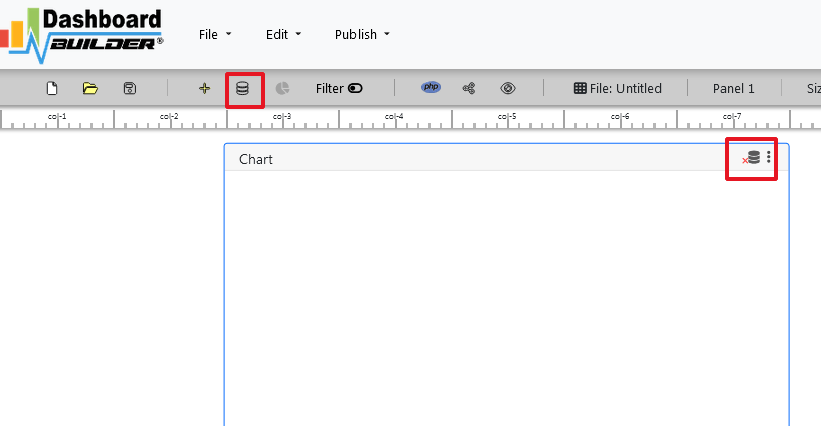
- STEP-2 Click the database icon
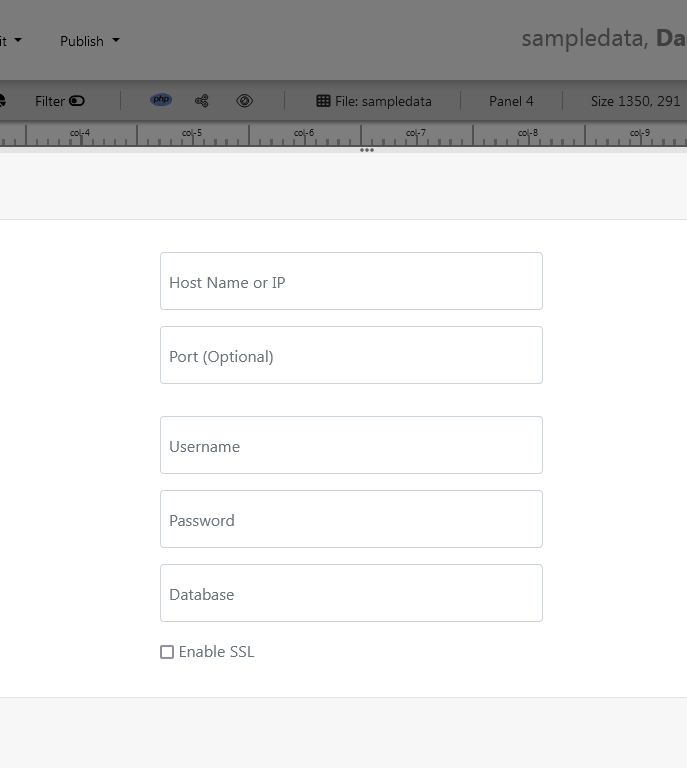
- STEP-3 On the database tab, enter the database credentials of your database and hit the Save Changes button.
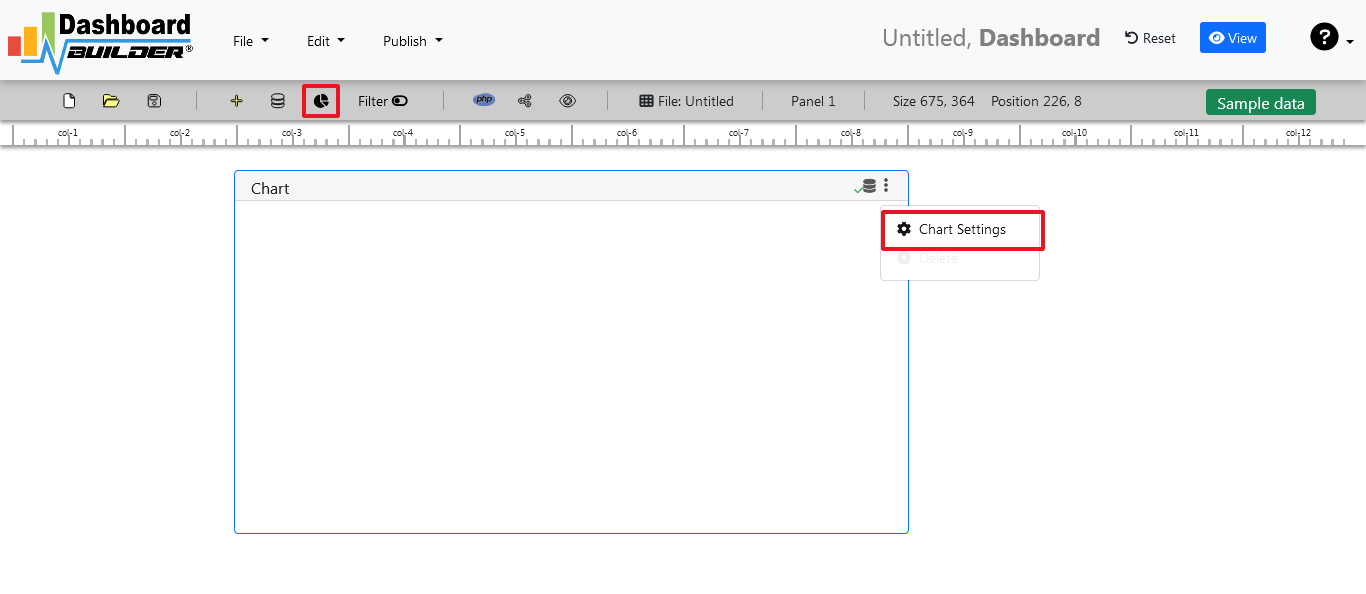
- STEP-4 Click the gear icon to open the chart properties windows
- STEP-5 On the next screen; select Line graph from the drop-down list of chart type. Select order date in X-axis and unit sold in Y-axis
- STEP-6 Now, click the Analytics tab.
- STEP-7 Save your changes and your business forecasting dashboard is ready. You have various options to publish your forecasting dashboard.


Aggregate sum monthly sales by check the month on X-axis in ascending order and Sum on Y-axis.


You must have a date in your X-axis in order to forecast your sale otherwise this button would not be enabled.
We can see here again in the solid line this is our actual data. And then based on the actual data and pattern over time with that data, the dashboard builder can through various statistical algorithms produces a forecast of what we should expect.
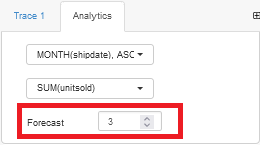
Enter the number of iterations we want to the dashboard builder to forecast.
Generating BI reports with PHP source code
/**
 * DashboardBuilder
 *
 * @author Diginix Technologies www.diginixtech.com
 * Support  - http://www.dashboardbuilder.net
 * @copyright (C) 2018 Dashboardbuilder.net
 * @version 2.1.7
 * @license: license.txt
 */

include("inc/dashboard_dist.php");  // copy this file to inc folder


// for chart #1
$data = new dashboardbuilder();
$data->type =  "pie";

$data->source =  "Database";
$data->rdbms =  "mysql";
$data->servername =  "";
$data->username =  "";
$data->password =  "";
$data->dbname =  "northwind";
$data->xaxisSQL[0]=  "SELECT strftime(^%Y-%m^,o.shippeddate) as xaxis, sum(d.quantity) as yaxis from `order details` d, orders o  where o.orderid = d.orderid group by strftime(^%Y-%m^,o.orderdate) limit 50";
$data->xaxisCol[0]=  "xaxis";
$data->yaxisSQL[0]=  "SELECT strftime(^%Y-%m^,o.shippeddate) as xaxis, sum(d.quantity) as yaxis from `order details` d, orders o  where o.orderid = d.orderid group by strftime(^%Y-%m^,o.orderdate) limit 50";
$data->yaxisCol[0]=  "yaxis";
$data->name = "piechart";
$data->title = "Pie Chart";
$data->orientation = "";
$data->xaxistitle = "x-axis title";
$data->yaxistitle = "y-axis title";
$result[0] = $data->result();

?>

<!DOCTYPE html>
<html>
<head>
	<script src="assets/js/dashboard.min.js"></script> <!-- copy this file to assets/js folder -->
	<!--<link rel="stylesheet" href="assets/css/bootstrap.min.css"> Bootstrap CSS file, change the path accordingly -->


</head>
<body>

<div class="container">
<div class="col-lg-12">
<div class="panel panel-default">
<div class="panel-heading"></div>
    <div class="panel-body">
        <?php echo $result[0];?>
    </div>
</div>
</div>
</div>
</body>
PHP Business Intelligence (BI) Report Example pages
Whether you're looking for inspiration or just want to take a quick look at your clients, a pre-made sample page can get your project started. Creating charts and graphs in PHP BI has never been easier.
Conclusion
In conclusion, the PHP BI tool is an essential part of any business's data analysis and decision-making process. It gives your businesses the ability to rapidly and effectively gather, arrange, and analyze vast amounts of data. With it’s user-friendly interfaces and customizable features, this tool is accessible to businesses of all sizes and technical expertise. If you're looking to improve your business's data analysis capabilities, a PHP BI tool is an excellent investment..
How helpful was this information?
An introduction to the Dashboard Designer – FREE Download
The Dashboard Designer is a versatile tool that empowers users to create visually appealing and interactive dashboards.In today's fast-paced business environment, data visualization has become a crucial aspect of decision-making. Organizations across industries are leveraging the power of dashboards to gain insights and monitor key metrics effectively. In this article, we will explore the features and functionalities of the Dashboard Designer, and discuss how it can be utilized to build impactful dashboards for web applications.
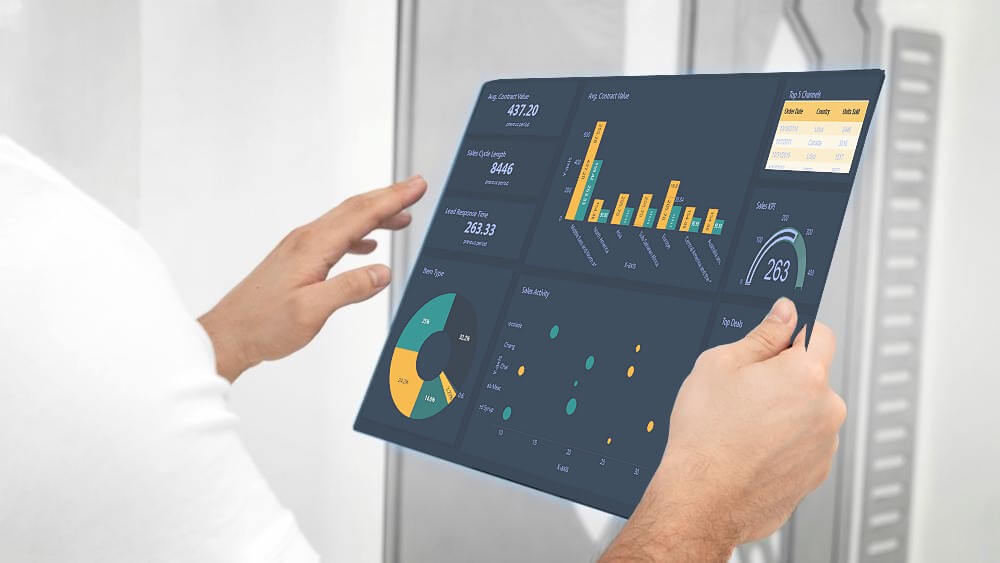
Understanding the Dashboard Designer
The Dashboard Designer is a powerful tool that allows users to create and customize dashboards according to their specific requirements. It offers the Web Dashboard Designer. Let's take a closer look at this feature.
Transforming Data into Actionable Web Dashboard with the Dashboard Designer
The Dashboard Designer is a powerful tool that allows users to create dashboards directly in a web browser. With its browser-based interface, the Dashboard Designer provides a convenient and accessible solution for designing dashboards on the go. To get started with the Dashboard Designer, you can refer to the "How to use the Dashboard Designer" section in this article, which provides a comprehensive guide on creating a web-based dashboard application.
Once you have set up the Web Dashboard Designer, you can explore its various features and customize the dashboard control. The "Web Dashboard" documentation offers insights on how to prepare and customize the Web Dashboard control. Additionally, this article provides step-by-step instructions on designing dashboards in the Web Dashboard Designer.
Features and Functionalities
The Designer offers a wide range of features and functionalities that enable users to create dynamic and interactive dashboards. Let's explore some of the key features of the Dashboard Designer.
Data Source Connectivity
The Dashboard Designer allows users to connect to various data sources, including databases, spreadsheets, and web services. This flexibility enables users to retrieve real-time data and create dynamic dashboards that reflect the most up-to-date information. The Designer supports a wide range of data connectors, ensuring compatibility with popular data sources.
Drag-and-Drop Interface
The intuitive drag-and-drop interface of the Dashboard Designer makes it easy for users to add and arrange data visualizations on the dashboard canvas. Users can simply drag and drop data elements, such as charts, tables, and gauges, onto the canvas and position them according to their preferences. This user-friendly approach eliminates the need for extensive coding or technical expertise, empowering users to create dashboards with ease.
Visualization Customization
The Dashboard Designer offers extensive customization options for data visualizations. Users can modify the appearance, layout, and behavior of individual elements to create visually stunning dashboards that align with their branding and design preferences. The Designer provides a wide range of customization tools, including color palettes, font styles, and interactive elements, allowing users to create engaging and impactful dashboards.
Interactivity and Drill-Down Capabilities
Dashboards created with the Dashboard Designer can be interactive, enabling users to explore data and gain insights through drill-down capabilities. Users can define interactive elements, such as filters and parameters, to allow end-users to interact with the dashboard and view specific data subsets. This interactivity enhances the user experience and empowers users to extract meaningful insights from the dashboard.
Collaboration and Sharing
The Dashboard Designer facilitates collaboration and sharing by providing options to publish dashboards to various platforms. Users can export dashboards as standalone applications or embed them within existing applications. The Designer also supports sharing dashboards via email or through web-based portals, allowing multiple stakeholders to access and interact with the dashboard simultaneously.
Benefits of Using the Dashboard Designer
The Dashboard Designer offers numerous benefits that make it a valuable tool for organizations looking to leverage data visualization. Let's explore some of the key benefits of using the Dashboard Designer.
1. Enhanced Data Visualization
The Dashboard Designer empowers you to transform raw data into visually stunning and easy-to-understand visualizations. With a wide range of customizable charts, graphs, and widgets at your disposal, you can present complex data in a visually appealing manner. This enhanced data visualization capability enables stakeholders to quickly grasp insights and make informed decisions.
2. Interactive and Real-Time Insights
The Dashboard Designer allows you to create interactive dashboards that enable users to explore data in real-time. With intuitive filtering and drill-down capabilities, users can dive deep into the data and uncover valuable insights. This interactivity fosters a data-driven culture within organizations and empowers users to make informed decisions based on real-time data.
3. Seamless Collaboration
Collaboration is crucial in today's fast-paced business environment. The Dashboard Designer offers seamless collaboration features, allowing multiple users to work on the same dashboard simultaneously. This promotes teamwork, ensures data consistency, and accelerates the dashboard creation process. With the ability to share dashboards easily, you can facilitate effective communication and alignment across teams.
4. Cross-Platform Flexibility
The Dashboard Designer provides cross-platform flexibility. This means you can create dashboards on the platform that best suits your needs and seamlessly transition between platforms if required. This flexibility ensures that you can cater to the diverse needs of your users and leverage the power of data visualization across different devices and operating systems.
5. Extensive Customization Options
Every business has unique requirements when it comes to data visualization. The Dashboard Designer offers extensive customization options, allowing you to tailor the appearance and functionality of your dashboards to align with your brand and specific needs. From color schemes and themes to interactive elements and layout options, the Dashboard Designer enables you to create dashboards that are truly reflective of your organization's identity.
How to Use the Dashboard Designer
APPLIES TO: On-premises Online Desktop

In this article, we'll use the Dashboard Builder Tool to design a dashboard and retrieve data from a PostgreSQL database, as well as generate PHP source code.
Prerequisites
PosgreSQL Dashboard can be installed any platforms like Windows, Linux and Ubuntu or any other platforms support Apache, Nginx etc.
Requirements
- PHP Version 7.2 or later
- Apache 2 or later
- PostgreSQL database
- PDO and pdo_pgsql
- Windows 7 or later /Linux 3 or later
- Firefox 52, Chrome 57, IE
- PostgreSQL Dashboard is available for downloading
Installation
There is a Free version of the Dashboard Designer available for trail bases,
- You can download the Dashboard Designer dashboard code fromDownload Dashboard Designer
- Place the files in a directory on the web server. e.g.
…/www/yoursite/dashbboardbuilder-v3-FREE/ - Unzip the file dashboard.zip using Extract Here option to the root folder of "dashboardbuilder"
Steps to build PostgreSQL dashboard
STEP-1: Connect with PostgreSQL Database
- Run the web folder in your browser. e.g. http://localhost/dashboardbuilder following welcome screen will appear.
"database-name" in the DB name field and click Save changes button.

Tip: If your database is not in the public schema, then you can use your schema name in this manner 127.0.0.1:5432/Schema in the host field.
- When you click the save changes, a green tick mark with Database will appear that shows that your database is successfully connected.
Tip: To retrive data from PostgreSQL database, PDO driver 'pdo_pgsql' must be installed. For more details please have a look at our Documentation
STEP-2: Chart settings
- After successfully connect to your PostgreSQL database, we will retrieve data from your database in our next step.
- Select the gear icon.
- A pop-up screen will appear and a list of the tables from your PostgreSQL database will appear on the table list as shown in the picture below.

PostgreSQL dashboards have a powerful Query Builder, a smart SQL statement builder tool for quick and easy writing of complex SQL queries without manual code writing which is designed to simplify the retrieving of data from the database.
- When you click on the table, a default SQL statement will appear on the SQL statement box, which you may modify as per your need.
- You can add up to 10 SQL statements simultaneously to retrieve data from different tables.
STEP-3: pgSQL statements
- In our example, we will be creating a simple PHP application for our sales management. This PHP dashboard will contain a chart where users can find the sales stats and maintain the data about the products.
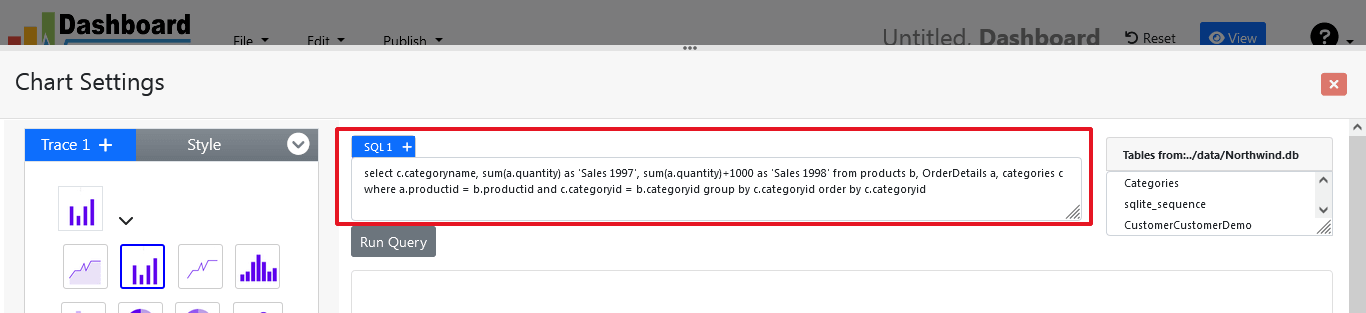
- Now, enter the pgSQL statement in text box in a following manner
SELECT strftime('%Y-%m',o.shippeddate) as xaxis, sum(d.quantity) as yaxis from `order details` d, orders o where o.orderid = d.orderid group by strftime('%Y-%m',o.orderdate) limit 50
- Now, we want to execute our query and fetch the data from the tables. Click the Run Query button
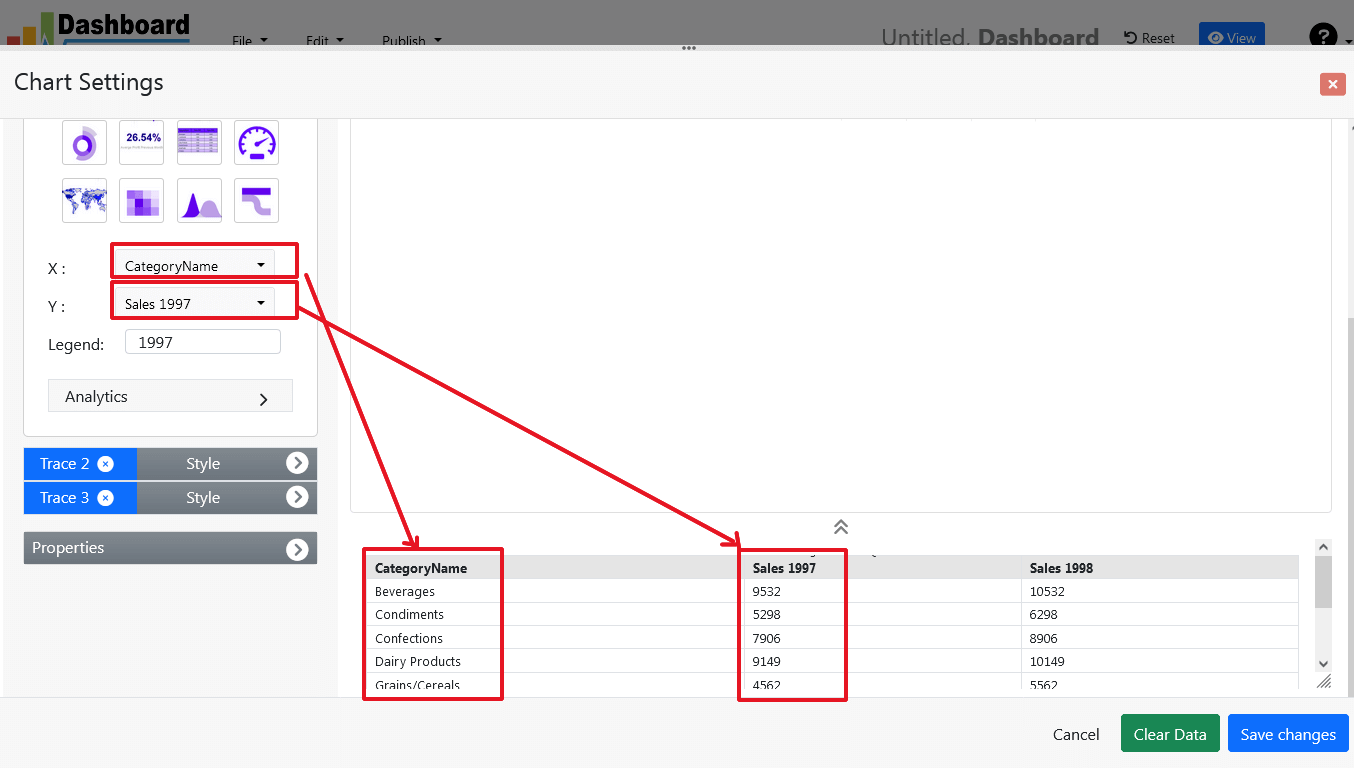
- Query Result will appear. Now, we have to assign x-axis data to the x-axis column and y-axis data to the y-axis column. Select your x-axis data from the drop down list of X and y-axis data from the drop down list of Y .
- Click Save Changes
- Charts will be appeared on the screen as shown below.
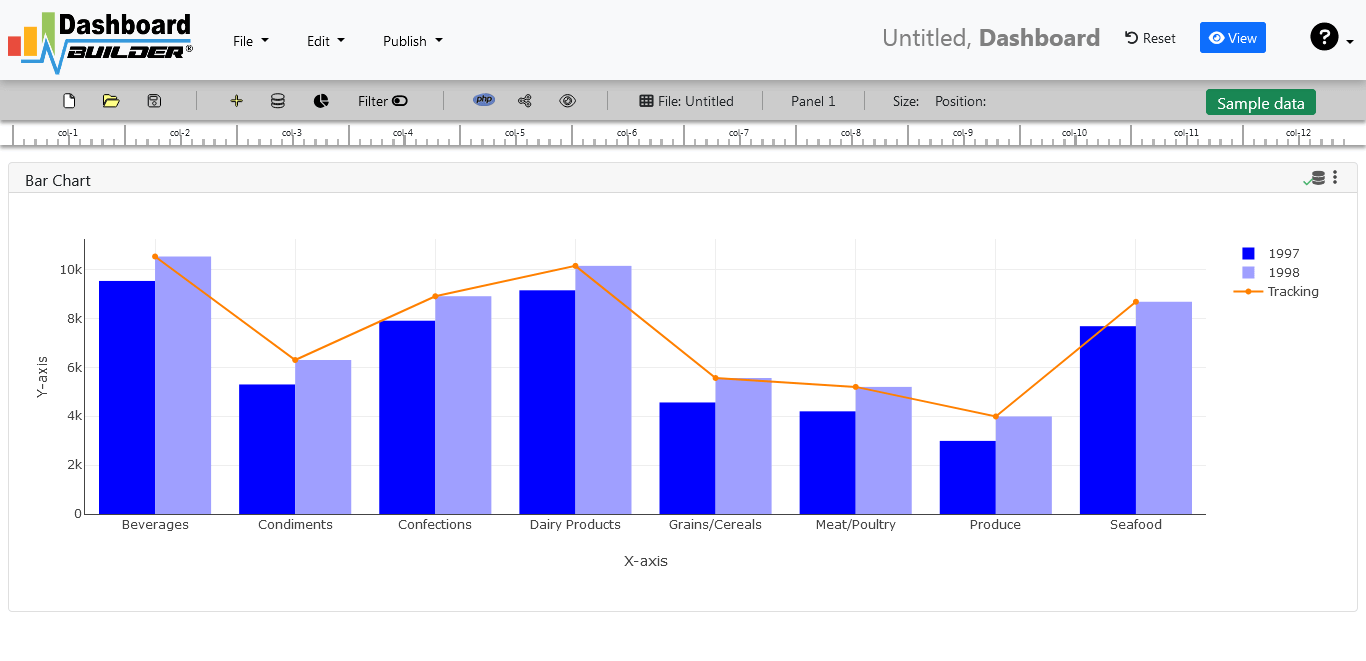
STEP-4: Adjust the position
- You may adjust the size and the position of the Chart Panel by dragging its corner. The size and position are fully responsive according to the Bootstrap framework
STEP-5: Generate source code of the Dashboard for your Web Application
- So far we have successfully build our dashboard. In this step we are going to generate the source code we have just created. Click the Generate button to auto-generate PostgreSQL dashboard source code for our PHP application

- The source code for the dashboard will automatically generate, you may copy past this script of dashboard to your PHP application.
Open Source Code of the Dashboard Designer for Web Application
/**
 * DashboardBuilder
 *
 * @author Diginix Technologies www.diginixtech.com
 * Support  - http://www.dashboardbuilder.net
 * @copyright (C) 2018 Dashboardbuilder.net
 * @version 2.1.7
 * @license: license.txt
 */

include("inc/dashboard_dist.php");  // copy this file to inc folder


// for chart #1
$data = new dashboardbuilder();
$data->type =  "line";

$data->source =  "Database";
$data->rdbms =  "pgsql";
$data->servername =  "your-servername";
$data->username =  "userid";
$data->password =  "password";
$data->dbname =  "your-db-name";
$data->xaxisSQL[0]=  "SELECT strftime(^%Y-%m^,o.shippeddate) as xaxis, sum(d.quantity) as yaxis from `order details` d, orders o  where o.orderid = d.orderid group by strftime(^%Y-%m^,o.orderdate) limit 50";
$data->xaxisCol[0]=  "xaxis";
$data->yaxisSQL[0]=  "SELECT strftime(^%Y-%m^,o.shippeddate) as xaxis, sum(d.quantity) as yaxis from `order details` d, orders o  where o.orderid = d.orderid group by strftime(^%Y-%m^,o.orderdate) limit 50";
$data->yaxisCol[0]=  "yaxis";
$data->name = "linechart";
$data->title = "Line Chart";
$data->orientation = "";
$data->xaxistitle = "x-axis title";
$data->yaxistitle = "y-axis title";
$result[0] = $data->result();

?>

<!DOCTYPE html>
<html>
<head>
	<script src="assets/js/dashboard.min.js"></script> <!-- copy this file to assets/js folder -->
	<!--<link rel="stylesheet" href="assets/css/bootstrap.min.css"> Bootstrap CSS file, change the path accordingly -->


</head>
<body>

<div class="container">
<div class="col-lg-12">
<div class="panel panel-default">
<div class="panel-heading"></div>
    <div class="panel-body">
        <?php echo $result[0];?>
    </div>
</div>
</div>
</div>
</body>
Conclusion
In conclusion, the Dashboard Designer is a powerful tool that unlocks the potential of data visualization and analysis. This versatile tool empowers you to create visually stunning, interactive, and highly customizable dashboards. By leveraging the capabilities and resources available with the Dashboard Designer, you can transform raw data into valuable insights, foster a data-driven culture, and make informed decisions that drive business growth. Embrace the power of the Dashboard Designer and unleash the potential of data visualization in your organization.
How helpful was this information?
Open Source Business Intelligence (BI) Tool – Download FREE
Revolutionizing the Analytics Industry with the Open Source Business Intelligence Tool
Business Intelligence (BI) tools are essential. for any organization to make informed and data-driven decisions. In today's fast-paced and constantly evolving business environment, effective BI tools are more important than ever. Organizations are looking for cost-effective and efficient solutions that can help them analyze their data and gain insights in order to stay ahead of the competition. Open-source BI tools have emerged as a popular choice among organizations due to their flexibility, cost-effectiveness, and scalability.

What are Open Source Business Intelligence Tools
Open-source BI tools are free software solutions that can be used and modified by anyone. The source code for these tools is open to the public such as at Open source BI at Github, and developers can modify and customize it to meet their specific requirements. The open-source nature of these tools means that organizations do not need to pay any licensing fees or purchase expensive proprietary software.
Advantages of Open Source Business Intelligence Tools
One of the key benefits of open source business intelligence (BI) tools is their flexibility and customizability. Open source BI tools allow users to customize and expand the software to meet their specific needs and integrate with other tools and systems. This can result in cost savings, as users can avoid the licensing fees associated with proprietary BI software, and also enables more innovation and collaboration within the open source community. Additionally, open source BI tools often have a large and active user community, providing access to a variety of resources, support, and knowledge-sharing opportunities.
The Open Source BI tool has unique set of features and capabilities. Some of the most popular are include:
- Cost-effective: One of the primary advantages of open-source BI tools is their cost-effectiveness. Organizations can save a significant amount of money on licensing fees and software costs. Additionally, they can avoid vendor lock-in and switch between different open-source BI tools based on their requirements..
- Flexibility:: Open-source BI tools offer greater flexibility than proprietary software solutions. Organizations can add new features, integrate the software with other programs, and modify the software to suit their particular requirements.
- Scalability: : Open-source BI tools can be used to analyze vast amounts of data and are highly scalable. As their data requirements increase, organizations can add new hardware and servers.
- Community : Support: Open-source BI tools have a large developer community that is constantly improving and updating the software. These updates and patches provide organizations with access to a wealth of knowledge and resources.
Case Study: How an Open-Source BI Tool helped a Retail Chain
A leading retail chain in the United States was having difficulty with its sales data. The company had a variety of sales channels, including physical stores and an e-commerce website. The data from these channels, however, was stored in separate databases and was not integrated. The retail chain required a BI tool that could integrate data from multiple sources and provide executives with real-time insights.

The company chose an open-source BI tool that enabled it to integrate data from a variety of sources, including its point-of-sale systems, e-commerce website, and social media channels. The tool provided real-time dashboards and reports to executives, allowing them to make informed decisions about inventory management, pricing, and marketing.
The open-source BI tool also allowed the company to customize and modify the software to meet its specific needs. The company's IT team developed custom application that helped integrate data from new sources and created new reports and dashboards to meet the changing needs of the business.
The Result: The retailer was able to gain real-time insights into its sales data and make informed pricing, inventory management, and marketing decisions. The open-source BI tool helped the company save money on licensing fees and software costs. The IT team at the company was able to customize and modify the software to meet its specific requirements, as well as integrate data from new sources. The tool also enabled the company to scale up as its data requirements increased.
Open source FREE bi tool for PostgreSQL and Apache
Transform your data into insights with the freedom of Open Source BI for PostgreSQL and Apache.
One popular open-source BI tool for PostgreSQL is the Dashboard Builder. The Dashboard Builder is a business intelligence and analytics tool that allows users to visualize and explore data from their PostgreSQL databases. It offers a user-friendly interface for creating charts, graphs, and dashboards without requiring advanced technical knowledge.
The Dashboard Builder is built with PHP, Javascript and uses a web-based interface, making it accessible from any web-enabled device. It also supports multiple data sources, including PostgreSQL, MySQL, and Microsoft SQL Server, among others.
The Dashboard Builder’s features include:
- Easy setup and installation with minimal configuration required
- Intuitive drag-and-drop interface for creating dashboards and reports
- Supports multiple chart types, including line charts, bar charts, and scatterplots
- Allows for custom SQL queries to be run against the data
- Built-in support for user permissions and role-based access control
- Automatic database schema detection, making it easy to connect to your PostgreSQL databases
- Advanced filtering options, including date range filters, grouping, and sorting
The Dashboard Builder is highly customizable and extensible, with a wide range of web programming languages and integrations available. It is also actively maintained and supported by a large community of developers and users.
Open Source BI tool Tutorial
APPLIES TO: On-premises Online Desktop
In this article, we'll use the Dashboard Builder Tool to create a Business Intelligence Report and retrieve data from a PostgreSQL database, as well as generate PHP source code.
Prerequisites
PosgreSQL Dashboard can be installed any platforms like Windows, Linux and Ubuntu or any other platforms support Apache, Nginx etc.
Requirements
- PHP Version 7.2 or later
- Apache 2 or later
- PostgreSQL database
- PDO and pdo_pgsql
- Windows 7 or later /Linux 3 or later
- Firefox 52, Chrome 57, IE
- PostgreSQL Dashboard is available for downloading
Installation
There is a Free version of PostgreSQL dashboard available for trail bases,
- You can download PostgreSQL dashboard code fromDownload PostgreSQL Dashboard
- Place the files in a directory on the web server. e.g.
…/www/yoursite/dashbboardbuilder-v3-FREE/ - Unzip the file dashboard.zip using Extract Here option to the root folder of "dashboardbuilder"
Steps to build PostgreSQL dashboard
STEP-1: Connect with PostgreSQL Database
- Run the web folder in your browser. e.g. http://localhost/dashboardbuilder following welcome screen will appear.
"database-name" in the DB name field and click Save changes button.
Tip: If your database is not in the public schema, then you can use your schema name in this manner 127.0.0.1:5432/Schema in the host field.
- When you click the save changes, a green tick mark with Database will appear that shows that your database is successfully connected.
Tip: To retrive data from PostgreSQL database, PDO driver 'pdo_pgsql' must be installed. For more details please have a look at our Documentation
STEP-2: Chart settings
- After successfully connect to your PostgreSQL database, we will retrieve data from your database in our next step.
- Select the gear icon.
- A pop-up screen will appear and a list of the tables from your PostgreSQL database will appear on the table list as shown in the picture below.
PostgreSQL dashboards have a powerful Query Builder, a smart SQL statement builder tool for quick and easy writing of complex SQL queries without manual code writing which is designed to simplify the retrieving of data from the database.
- When you click on the table, a default SQL statement will appear on the SQL statement box, which you may modify as per your need.
- You can add up to 10 SQL statements simultaneously to retrieve data from different tables.
STEP-3: pgSQL statements
- In our example, we will be creating a simple PHP application for our sales management. This PHP dashboard will contain a chart where users can find the sales stats and maintain the data about the products.
- Now, enter the pgSQL statement in text box in a following manner
SELECT strftime('%Y-%m',o.shippeddate) as xaxis, sum(d.quantity) as yaxis from `order details` d, orders o where o.orderid = d.orderid group by strftime('%Y-%m',o.orderdate) limit 50
- Now, we want to execute our query and fetch the data from the tables. Click the Run Query button
- Query Result will appear. Now, we have to assign x-axis data to the x-axis column and y-axis data to the y-axis column. Select your x-axis data from the drop down list of X and y-axis data from the drop down list of Y .
- Click Save Changes
- Charts will be appeared on the screen as shown below.
STEP-4: Adjust the position
- You may adjust the size and the position of the Chart Panel by dragging its corner. The size and position are fully responsive according to the Bootstrap framework
STEP-5: Generate PHP and Postgresql dashboard source code
- So far we have successfully build our dashboard. In this step we are going to generate PHP dashboard source code we have just created. Click the Generate button to auto-generate PostgreSQL dashboard source code for our PHP application
- PostgreSQL dashboard source code for the chart will automatically generate, you may copy past this script of dashboard to your PHP application.
Open Source Code for the BI tool
/**
 * DashboardBuilder
 *
 * @author Diginix Technologies www.diginixtech.com
 * Support  - http://www.dashboardbuilder.net
 * @copyright (C) 2018 Dashboardbuilder.net
 * @version 2.1.7
 * @license: license.txt
 */

include("inc/dashboard_dist.php");  // copy this file to inc folder


// for chart #1
$data = new dashboardbuilder();
$data->type =  "line";

$data->source =  "Database";
$data->rdbms =  "pgsql";
$data->servername =  "your-servername";
$data->username =  "userid";
$data->password =  "password";
$data->dbname =  "your-db-name";
$data->xaxisSQL[0]=  "SELECT strftime(^%Y-%m^,o.shippeddate) as xaxis, sum(d.quantity) as yaxis from `order details` d, orders o  where o.orderid = d.orderid group by strftime(^%Y-%m^,o.orderdate) limit 50";
$data->xaxisCol[0]=  "xaxis";
$data->yaxisSQL[0]=  "SELECT strftime(^%Y-%m^,o.shippeddate) as xaxis, sum(d.quantity) as yaxis from `order details` d, orders o  where o.orderid = d.orderid group by strftime(^%Y-%m^,o.orderdate) limit 50";
$data->yaxisCol[0]=  "yaxis";
$data->name = "linechart";
$data->title = "Line Chart";
$data->orientation = "";
$data->xaxistitle = "x-axis title";
$data->yaxistitle = "y-axis title";
$result[0] = $data->result();

?>

<!DOCTYPE html>
<html>
<head>
	<script src="assets/js/dashboard.min.js"></script> <!-- copy this file to assets/js folder -->
	<!--<link rel="stylesheet" href="assets/css/bootstrap.min.css"> Bootstrap CSS file, change the path accordingly -->


</head>
<body>

<div class="container">
<div class="col-lg-12">
<div class="panel panel-default">
<div class="panel-heading"></div>
    <div class="panel-body">
        <?php echo $result[0];?>
    </div>
</div>
</div>
</div>
</body>
Conclusion
Open-source BI tools are revolutionizing the analytics industry by providing organizations with cost-effective, flexible, and scalable solutions. These tools are popular because they are open-source, allowing developers to modify and customize the software to meet their specific needs. Open-source BI tools also have a large developer community that is constantly improving and updating the software, giving organizations access to a wealth of knowledge and resources.
As organizations continue to generate and store more data, the need for effective BI tools will only continue to grow. Open-source BI tools provide organizations with a cost-effective and
How helpful was this information?
Prediction Analytics in Visualization: A Comprehensive Guide for Data-Driven Decision Making
Overview
Prediction analytics in visualization is a powerful approach that combines predictive analytics techniques with data visualization to gain valuable insights from complex datasets and forecast future trends. In today's data-driven world, businesses and organizations are constantly seeking ways to extract meaningful information from the vast amount of data at their disposal. Prediction analytics in visualization plays a crucial role in helping them transform raw data into actionable intelligence, enabling data-driven decision-making and strategic planning.

Introduction
In today's era of data abundance, organizations are sitting on a goldmine of information. However, the real challenge lies in transforming this raw data into actionable insights to make informed decisions. Prediction analytics in visualization is a powerful combination that enables businesses to unlock the hidden potential of their data and predict future trends. In this guide, we will explore the concepts of prediction analytics in visualization and provide a step-by-step approach on how to effectively use it for data-driven decision making.
I. Understanding Prediction Analytics in Visualization
Prediction analytics, also known as predictive analytics, is the use of statistical algorithms and machine learning techniques to analyze historical data and make predictions about future events. It involves identifying patterns, relationships, and trends within data to forecast outcomes. Visualization, on the other hand, employs charts, graphs, and interactive dashboards to represent complex data visually. Combining prediction analytics with visualization enhances the comprehension of analytical results and aids in decision-making processes.
II. The Benefits of Prediction Analytics in Visualization
- Clear Insights: Visualization makes complex data more accessible and understandable, allowing decision-makers to quickly grasp key insights without getting lost in technical jargon.
- Proactive Decision Making: Predictive analytics empowers businesses to anticipate future trends, identify potential risks, and take proactive measures to stay ahead of the competition.
- Optimal Resource Allocation: Visualization of predictive models enables efficient allocation of resources, optimizing budget allocation, workforce planning, and inventory management.
- Personalization and Customer Engagement: By predicting customer behavior and preferences, businesses can tailor their products and services to meet individual needs, enhancing customer engagement and loyalty.
III. How to Use Prediction Analytics in Visualization
Step 1: Define the Objective
- Clearly articulate the problem or question you want to answer using prediction analytics. Whether it's forecasting sales, predicting customer churn, or optimizing inventory, a well-defined objective is crucial.
Step 2: Data Collection and Preparation
- Gather relevant data from various sources and ensure its quality, accuracy, and completeness.
- Preprocess the data by handling missing values, normalizing or scaling, and converting it into a format suitable for analysis.
Step 3: Choose the Right Model
- Select appropriate predictive algorithms based on your specific use case. Predictive modeling involves giving the presence of particular variables in a large dataset a certain weight or score. This score is then used to calculate the probability of a certain event occurring in the future. For this reason, the dashboard builder uses regression modeling approaches in predictive analytics.
Step 4: Model Training and Validation
- Split your data into training and validation sets to train the predictive model and test its accuracy.
- Use techniques like cross-validation to ensure the model's reliability and prevent overfitting.
Step 5: Apply Visualization Techniques
- Utilize data visualization tools like the Dashboard Builder to present the results of your predictive model in a visually compelling manner.
- Create interactive dashboards, charts, and graphs to display trends and insights that support your decision-making process.
Step 6: Interpretation and Decision Making
- Interpret the visualizations carefully, considering the implications of the predictions on your business objectives.
- Use these insights to make well-informed decisions and develop strategies to capitalize on opportunities and mitigate risks.
Step 7: Monitor and Refine
- Continuously monitor the performance of your predictive model and update it as new data becomes available.
- Refine your visualization techniques based on feedback and changing business needs.
IV. Best Practices and Challenges
Best Practices:
- Ensure data quality and integrity throughout the entire process to obtain accurate predictions..
- Collaborate with domain experts to understand the nuances of the business problem and validate model outputs..
- Keep visualizations simple, intuitive, and relevant to the audience..
Challenges:
- Dealing with large and complex datasets that may require powerful computing resources.
- Addressing potential biases in the data and models to ensure fair and ethical predictions.
- Managing data security and privacy concerns, especially when dealing with sensitive information.
Conclusion
Prediction analytics in visualization empowers you to make data-driven decisions, gaining valuable insights into future trends and outcomes. By following the step-by-step guide outlined in this article, you can harness the power of predictive models and data visualization tools to unlock the true potential of their data. It's crucial to remember that successful implementation requires a combination of technical expertise, domain knowledge, and a commitment to continuous improvement. Embrace prediction analytics in visualization as a strategic asset that guides your business toward growth and success in an increasingly competitive landscape.