10 best practices rules for making your dashboard perfect.
The world of information technologies is full of possibilities. But when it is time to create a dashboard, careful planning and strategy must be in place– most often, your data visualization charts, graphs, and reports fail to deliver clear information to your audience. In order to keep your dashboard on the right path.
So often, our little extra efforts make a huge and positive contribution to our result. We have compiled the 10 best practices rules for making your dashboard perfect. By understanding the do’s and don’ts of dashboards and adopting these benefits.
10 best practices design rules for a dashboard.
To make your dashboard effective, you can improve your data visualization by accomplishing their goals through graphs by adopting the following 10 best practices for a dashboard to help you to make an excellent dashboard.
1. Limit the number of KPIs in One Dashboard

The dashboard you build should tell a story to your user with a graph. It should target the users at their objectives. Your dashboard should tell them about the goals they want to achieve. But using too many KPIs in one dashboard can divert the users in the wrong direction. You have to focus instead on the overall goal of your dashboard and be careful when selecting the KPIs to visualize. If you feel that your KPI does not achieve to display the overall objective, then you have to save it for another dashboard
2. Good Data

In fact, there are numerous reasons that can affect the quality of your data and, eventually, the quality of your dashboard. In order to keep the quality of your data and make it clean, you need to create and implement a data control plan in place. You have to make sure that you know the source of your data and its viability and authenticity. You may consider an Extract Transform and Loading tool can help you out on this to clean the data automatically.
3. Using the right Chart Type
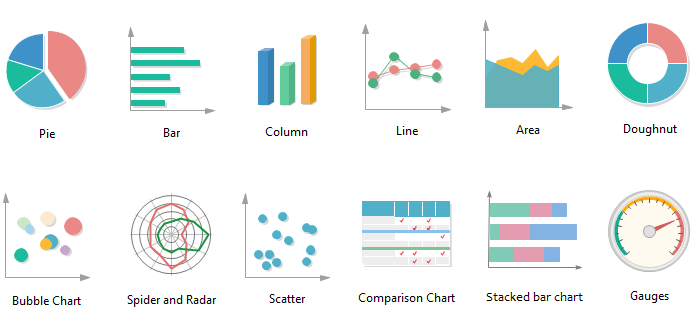
From pie charts to sunburst charts, there is numerous chart type available to visualize your data when you are designing a dashboard. Choosing the right charts type is one of the most important factors which impact your users' view and you might end up making it difficult for your user to interpret your data, not easier. Remember! Some chart type works with a certain type of information only, while others are often overused. A candle chart, for instance, is suitable for visualizing financial data. Similarly, a pie chart is only useful for showing percentages of a whole as they relate to each other. Bar chart, on the other hand, in comparison, provides more details as time stamps.
4. Context & Legends

Without context, a piece of information is just a dot. It floats in your brain with a lot of other dots and doesn’t mean at all. Knowledge is information in context, connecting the dots. Similarly, without context and legends, your dashboard doesn’t visualize your data to your audience as much as it should be. Your dashboard should help your audience to draw hidden correlations between different elements of your data. Providing extra information such as context and legends make sure your every data is aimed to provide context for other graphs on the same dashboard page.
5. Colors Scheme

Color creates ideas, expresses messages, spark interest, and generate certain emotions. Some colors hold a universal significance- for stance, it is commonly known that red is a color for warning and green means go. The importance of color scheme stems from the significance of color to the human mind. Like every piece of your dashboard, your color scheme should serve a purpose to your audience. Two common things need to be considered when choosing the color scheme: 1) Branding and 2) Communication. First, pick a simple color scheme that meets your organization’s brand. Then, consider what colors that communicate with your audience. Choose bright colors such as red or orange, carefully if you want to draw attention to a specific metric. Use neutral colors to provide a visual foundation. Eventually, users only notice the colors when you want them to. Otherwise, your color scheme simply exists to enhance your data narrative..
6. Balancing data and visualization

Data visualization is all about balancing between accurate data and accurate visualization. However, in most cases it’s swept up in the visualization side of the object and ignore the visual elements of your dashboard. Three-dimensional charts, as an example, are extremely difficult to understand for users to draw the detailed conclusions. Similarly, moving the Y-axis away from the zero baseline of your chart to highlight a specific data point may affect the accuracy, even if you don’t change the actual information in the graph.
7. Importance of Numbers

Whether costs, revenues, performance, targets – Numbers speak for themselves; numbers can influence decisions related to performance, investments and effectiveness among other things. If a simple number can illustrate your point, use the number instead of graph. By mixing charts and graphs with numbers, your dashboard will provide the visual interest to your users to stay engaged.
8. Comparative data

Pie charts are commonly used to show percentage or proportional data and usually the percentage represented by each category is provided next to the corresponding slice of pie. But, they’re not always the best choice for your audience. Pie charts and other compositional charts are not suitable for comparisons. Forcing your audience to compare between two distinct elements in pie charts is impossible. Instead, use a column chart, which is suitable for comparative data, so your audience can see correlations between two distinct elements without any problem.
9. Embellishing the truth

We all know that flashing things grab the eye, but embellishing something that is already, may detract from the objective. Is your dashboard showing for your data or against it? Any visual element you include in your dashboard should enhance your data. Those elements should outshine the information you want to convey. Including too many visually impressive elements and not including enough information may detract from it.
10. Clarity

Your dashboard should provide clarity. Clarity for your data, clarity for your goals, clarity for your organization or department and a variance on how far they are from obtaining those goals. Moreover, you can use data visualization to help your audience to understand what they need to do to accomplish those goals. Without this clarity, your dashboard will leave your audience without any conclusion. In a way, your dashboard should provide a consistent view of your data’s purpose.
Are you ready to try your hand at data visualization? Try Dashboard Builder free ever!
George Lewis, Digital Marketing @DashboardBuilder
MySQL dashboard overview
MySQL Dashboard is the number one leading dashboard tool equipped with a drag-and-drop browser-based powerful tool, which allows non-technical users to retrieve data from the MySQL database, simplifies complex queries, and gives a quick insight and the highest level of accurate and deep understanding of your business performance.
What is MySQL dashboard?
MySQL Dashboard is an essential and must-have graphic designing tool for MySQL database by the Dashboard Builder, which connects with MySQL database, retrieves complex data queries from MySQL, and displays attractive charts and graphs for your dashboard. MySQL dashboard is a drag and drop utility with a powerful built-in SQL query generator; hence does not require any technical resource or programming skill and reduces your time retrieving data from MySQL and displaying a graph.
Why MySQL Dashboard?
We have surveyed our dashboard builder community, one of the largest and most popular communities for open source dashboards, in which we came to the following outstanding benefits:
3 remarkable benefits for using MySQL dashboard builder
There are many other benefits to using MySQL dashboard over other tools. However, the following three great benefits of using MySQL dashboard
- No technical skill required
- No installation required
- Its FREE for lifetime
1 No technical skill required
MySQL Dashboard has a user-friendly drag and drop web interface; it helps you build professional and attractive dynamic dashboards without writing a single line of code.
2 No installation required
Either you are using our online version of MySQL dashboard or the on-premises version, the MySQL dashboard does not require any installation. Just copy and unzip the zip file to the folder under the Apache server, and it's ready to go. Note: MySQL dashboard runs in Apache server; hence it is also known as Apache Server Dashboard or Apache Dashboard.
3 Its FREE for lifetime
MySQL dashboard comes with 100% FREE with a limited chart type. Enjoy our FREE version of MySQL dashboard for a lifetime with no obligation. This MySQL dashboard source code can also be found on GitHub under this license for our Dashboard Open Source Community and enjoy MySQL Dashboard free for lifetime.
Prerequisites
MySQL Dashboard can be installed any platforms like Windows, Linux and Ubuntu or any other platforms support Apache, Nginx etc.
Requirements
- PHP Version 7.2 or later
- Apache 2 or later
- MySQL database
- PDO and pdo_mysql
- Windows 7 or later /Linux 3 or later
- Firefox 52, Chrome 57, IE
- MySQL Dashboard is available for downloading
Installation
There is a Free version of MySQL dashboard available for trail bases,
- You can download MySQL dashboard code fromDownload MySQL Dashboard
- Place the files in a directory on the web server. e.g.
…/www/yoursite/dashbboardbuilder-v3-FREE/ - Unzip
 the file dashboard.zip using Extract Here option to the root folder of "dashboardbuilder"
 the file dashboard.zip using Extract Here option to the root folder of "dashboardbuilder"
How does MySQL Dashboard work?
The MySQL dashboard was written in a blend of PHP, JavaScript, and HTML. MySQL dashboard is lightweight, and it doesn't require installation. It runs in the browser. There is a very simplistic requirement for MySQL dashboard; it requires a web server, which supports and runs PHP scripts, such as Apache, the largest Open Source community for the server-side script, available in almost all famous operating systems, including Windows, Linux, and Ubuntu, etc.
MySQL dashboard uses the Bootstrap CSS framework, D3.js library, and HTML5, which displays responsive and dynamic professional graphs for your MySQL database.
Creating a professional MySQL dashboard is elementary and straightforward. It has a powerful code builder built-in, which requires no technical skill to build interactive dashboards for your business.
3 easy steps to create an attractive dashboard with MySQL dashboard.
The following three easy steps are instructive in many ways to help you to retrieve complex data queries from MySQL database and create attractive dashboards for MySQL database.
- Connect to your MySQL database
- Retrieve data from MySQL, using the powerful SQL generator.
- Assign data to the X and Y-axis columns.
1. Connect to your MySQL database
MySQL dashboard has a powerful database connectivity engine that uses PDO to connect and retrieve data from the MySQL database. It has a user-friendly interface in which you may provide your MySQL credentials to connect to your MySQL database. MySQL dashboard uses SSL to send and receive data over the internet without compromising the security of your credentials.
2. Retrieve data using the powerful SQL generator.
MySQL dashboard doesn't require any technical skill to write complex SQL queries. It has a powerful built-in SQL builder, which connects to your MySQL database, automatically generates SQL statements on clicks, and retrieves the data using innovative high-tech technology.
3. Assign data to X and Y-axis column
Once the data is retrieved, you may easily assign your data to the X and Y axis to display your desired chart. MySQL dashboard has a user-friendly, powerful drag and drop utility with the state of the art technology, in which you can resize and drag your canvas according to your need.
MySQL dashboard generator has a powerful drag and drops user interface, which allows you to adjust your graphs' properties, layout, size, and position by grabbing and dragging the graph using your mouse.
MySQL dashboard supports all famous type of chart
MySQL dashboard comprises a huge range of famous charts. You may select different chart types from a huge range to all famous types of charts from the given list.
MySQL dashboard brings all famous charts together in one single place to trace and measure your business performance on each different measurement. However, the following are the 13 most popular chart types also available in MySQL dashboards:
- Line
- Bar
- Stack
- Scatter
- Area
- Pie
- Donuts
- Bubble
- Gauge
- Heatmap
- Choropleth map
- Sunburst
- Sankey diagrams
MySQL Dashboard is a responsive
MySQL dashboard uses HTML5 and Bootstrap CSS framework. Hence, it has the full capability to respond to the environment based on media's screen size, platform and orientation of your device.
The graphs generated by the MySQL dashboard are fully responsive and fit to any device you use. You can access your dashboard from anywhere, on any standard browser using any device such as a PC, tablet, or mobile phone.
Make your graph dynamic
MySQL dashboard uses the D3.js JavaScript library to drive your graph dynamic. It updates the graph prosperity on click events. The graph updates automatically when a user clicks a trace, data legend, or selects a chart filter. The graph changes, and the prosperity updates instantly, which leads to an update in the chart.
Share your MySQL dashboard
MySQL dashboard lets you publish and share your dashboard with those around you, using just one click. This great dashboard tool for MySQL database generates your dashboards' URL that you may want to share with your colleagues.
MySQL Dashboard in PHP
Not only this, the MySQL dashboard has a powerful PHP code generator built-in, which generates PHP source code for your MySQL dashboard in just one click. This auto-generated MySQL dashboard in PHP is published under an MIT license, which you may customize as per your desired needs and can be used or embedded in your PHP application.
Download FREE MySQL chart generator
The fascinating news is that Dashboard builder offers the MySQL dashboard for FREE to facilitate its community. MySQL dashboard is free for a lifetime.
ODBC Dashboard Overview:
ODBC dashboard is a dashboard application tool which helps you to fetch data from a tremendous range of data source through ODBC to get your dashboard up, running and sharing in no time, zero code and without any Expert Techniques or programming skills required.

What is ODBC Dashboard Builder?
Open Database Connectivity (ODBC) dashboard is a kind of unique of data visualization tool which runs without installation in a browser, fetches data through ODBC generates dashboards in few clicks.
Why ODBC Dashboard?
Open Database Connectivity (ODBC) dashboard gives you the freedom to fetch data using the standard SQL query from any data source, from any operating system, and display graphs through a huge range of charts with the help of our powerful visualization tool called Dashboard Builder. Not only this, the ODBC dashboard had a powerful code generator, which generates source code for your dashboard without asking you to write a single line of code in just a few clicks.
Let’s create your first ODBC dashboard.
In the following example, we will create an ODBC dashboard, but before we get started, we need to make sure that the following requirements are met.
Hardware and Software Requirements
There are no such huge requirements to run ODBC Dashboard. The ODBC Dashboard was built by the pioneer dashboard builder firm. The ODBC dashboard is a kind of flimsy utility, which was built in an intelligible way and does not need heavy requirements to run.
Pre-requisites
Before starting this tutorial, you should:
- PHP Version 7 or later
- Apache 2 or later
- ODBC data source
- php_odbc extension for PHP
To enable php_odbc:Take a look in your php.ini, remove ; from extension=php_odbc.dll and restart your Apache server
ODBC Dashboard runs on all SVG-compatible browsers such as:
- Windows 7 or later /Linux 3 or later
- Firefox 52, Chrome 57, IE
- ODBC Dashboard is available for downloading
Installation
There is a Free version of dashboard available for trail bases,
- You can download the dashboard dashboard code fromDownload Dashboard Builder
- Place the files in a directory on the web server. e.g.
…/www/yoursite/dashbboardbuilder-v3-FREE/ - Unzip the file dashboard.zip using Extract Here option to the root folder of "dashboardbuilder"
TAKE ADVANTAGE OF THE FREEDOME OF CONNECTIVITY WITH ODBC
With the ODBC dashboard, you can gather all your data sources in one central place. The ODBC dashboard was developed in PHP language, JavaScript, and HTML, it is lightweight, runs in a browser, and doesn’t require any installation. There is a very limited requirement for ODBC dashboard, it requires a web server, which supports and runs PHP scripts, such as Apache, the largest Open Source community for the server-side script, available in almost all famous operating systems including Windows, Linux, and Ubuntu, etc., and an ODBC driver for your desire data source.
ODBC dashboard uses the Bootstrap CSS framework, D3.js library, and HTML5 to render a graph, which displays a responsive and dynamic quality graph from any source of database supported by the ODBC.
An attractive dashboard can be created easily and precisely with the ODBC dashboard. It has a powerful code builder built-in, which does not require any technical skill to build interactive dashboards for your business.
Connect an ODBC data source with a few clicks
With the help of the following easy steps, you can retrieve complex data queries from any data source supported by the ODBC and create the highest level of attractive dashboards for professional business with zero codings and without programming skills in a matter of minutes.
- Connect to your database through ODBC
- Retrieve data using our powerful SQL generator.
- Assign data to X and Y-axis column.
1. Connect to your database through ODBC
This section of this article helps you to understand how to connect to an ODBC data source in Microsoft Windows operating system. To proceed further, you need to make sure that you have already installed your desire ODBC driver to connect to your data source. If not then you may have to download the ODBC driver for your data source. .
2. Make sure the driver you want is installed
- STEP-1 In your Microsoft Windows, search for the ODBC Data Sources in the Start Menu or Control Panel. If you don’t have your desire driver installed, you need to download it
- STEP-2 Launch the ODBC Data Source Administrator, if you are a standard user of Windows then you need to launch the ODBC Data Source Administrator as Windows Administrator.
- STEP-3 On the Drivers tab, you can find a list of all the ODBC drivers installed on your computer.
Here's an example of the list of installed drivers.

Note: If you know that your driver's installed and you don't see it in the 64-bit applet, look in the 32-bit applet instead.
3. Select the data source
The ODBC drivers installed on your computer aren't listed in the drop-down list of data sources. To connect with an ODBC driver, start by selecting the .NET Framework Data Provider for ODBC as the data source on the Choose a Data Source or Choose a Destination page of the wizard. This provider acts as a wrapper around the ODBC driver.
Here's the generic screen that you see immediately after selecting the .NET Framework Data Provider for ODBC.

4. Provide the connection details
The next step is to provide the connection info for your ODBC driver and your data source. You have two options.
Option 1: Connect datasource through through a DSN
Option 2: Through a connecting string
In this article, we will go through with option 1 that is through a DSN
Option 1 - Connect datasource through DSN
If you want to provide the connection information with a DSN (data source name), use the ODBC Data Source Administrator applet to find the name of the existing DSN, or to create a new DSN.
- Search for or browse to the ODBC Data Sources applet in the Start Menu or Control Panel.
- Launch the applet. The ODBC Data Source Administrator window opens. Here's what the applet looks like.
- To create a new DSN, you need to decide whether you want it to be visible only to you (User DSN), visible to all users of the computer including Windows services (System DSN), or saved in a file (File DSN). This example creates a new System DSN.
- On the System DSN tab, click Add.
- Line
- Bar
- Stack
- Scatter
- Area
- Pie
- Donuts
- Bubble
- Gauge
- Heatmap
- Choropleth map
- Sunburst
- Sankey diagrams


In the Create a New Data Source dialog box, select the driver for your data source, then click Finish.

The driver now displays one or more driver-specific screens where you enter the info needed to connect to your data source. After you finish, the new system DSN appears in the list.
Go back to the wizard and enter the DSN name in the DSN field on the Choose a Data Source or Choose a Destination page. Continue to the next step of the wizard.
Retrieve data using our powerful SQL generator.
ODBC dashboard has a powerful database connectivity engine that uses ODBC to connect and retrieve data from the DSN you have just created in the steps we have discussed above. The ODBC dashboard has a unique, user-friendly interface, in which you can provide your ODBC info to connect your desire data source.
BUILDING A DYNAMIC & INTERACTIVE DASHBOARD WITH OUR DASHBOARD BUILDER
ODBC dashboard doesn’t require any technical skill to write complex SQL queries, fetch data, and create a graph. It has a powerful built-in SQL engine, which connects to your ODBC database and generates SQL statements automatically on clicks and retrieves the data using innovative high-tech technology.
5. Pick your columns to display in a graph
Once the data is retrieved, you may easily assign your data to the X and Y axis to display your desire chart. ODBC dashboard has an easy to use user-friendly and powerful drag and drop utility with high-tech technology, in which you can resize and adjust the position of your graph according to your need.
Create your favorite chart with ODBC dashboard
ODBC dashboard is comprised of a huge range of all famous charts you love. It gives you a huge range to chart types to select.
ODBC dashboard brings all famous charts together in one single place to trace and measure your business performance on each different measurement amazingly. Following are the 13 most popular chart types also available in ODBC dashboard:
Your Dashboards are responsive
ODBC dashboard uses HTML5 and Bootstrap CSS framework. Hence, it has full capability to respond to the environment based on media's screen size, platform and orientation of your device.
The graphs generated by the ODBC dashboard are fully responsive and fit to any device you use. You can access your dashboard from anywhere, any time, on any standard browser using any device such as a PC, tablet, or mobile phone.
Make your dynamic graph instantly
ODBC dashboard uses D3.js JavaScript library to drive your graph dynamic. It updates the graph prosperity on click events. That means the graph updates automatically when a user clicks a trace, data legend, or selects a chart filter. The graph changes, the prosperity updates instantly, which leads to an update in the chart. .
Share your dashboard with your team
With ODBC dashboard, you can publish and share your dashboard with your team using just one click. This great dashboard tool for ODBC generates the URL for your dashboard to share with your colleagues. Not only this, the ODBC dashboard has a powerful PHP code generator plugin installed, which generates PHP code for your dashboard in just one click. This auto-generated PHP code for your dashboard is published under the MIT license, which you can customize as per your desire needs and can be used or embed inside of your PHP application.
Oracle dashboard overview
An Oracle dashboard dispenses personalized views in graphic format of your corporate information which consists of one single layout page that exhibits conclusion of your Oracle database analysis.

Oracle dashboard tool is a browser based application built in PHP, HTML and JavaScript, featured with drag-and-drop easy to use tool, which permits non-technical users to retrieve data from Oracle database, simplifies your complex query and gives a expeditious insight and the highest level of analysis of your Oracle database.
What is Oracle Dashboard Builder?
Oracle Dashboard is a tool evolved by Dashboard Builder. This idiosyncratic tool helps you to connect to your Oracle database, retrieves intricate data query and displays attractive Oracle Dashboard and generates PHP code in a few clicks without writing a single code. Oracle Dashboard is a drag and drop utility which has a powerful built-in SQL query generator, hence does not require any technical resource or programming skill and reduce your time to retrieve data from Oracle database and display graph.
Prepare your exceptional Oracle Dashboards in scanty steps
Actualize Your First Oracle Dashboard
Before you commence:
Hardware and Software Requirements
Oracle Dashboard is a unique and un-ponderous utility, it was built in a simplistic and dictatorial way hence, does not need extravagant requirements to run.
Pre-requisites
- PHP Version 7 or later
- Apache 2 or later
- Oracle database
- php_oci8 extension for PHP
Oracle Dashboard runs on all SVG-compatible browsers such as:
- Windows 7 or later /Linux 3 or later
- Firefox 52, Chrome 57, IE
- MySQL Dashboard is available for downloading
Installation
There is a Free version of dashboard available for trail bases,
- You can download the dashboard dashboard code fromDownload Dashboard Builder
- Place the files in a directory on the web server. e.g.
…/www/yoursite/dashbboardbuilder-v3-FREE/ - Unzip the file dashboard.zip using Extract Here option to the root folder of "dashboardbuilder"
Beginning the analytic process with Oracle Dashboard
Oracle dashboard was written in PHP, JavaScript, and HTML. Oracle dashboard is lightweight, it doesn’t require installation, and it runs on the browser. There is a very simplistic requirement for Oracle dashboard, it requires a web server, which supports and runs PHP scripts, such as Apache, the largest Open Source community for the server-side script, available in almost all famous operating systems including Windows, Linux, and Ubuntu, etc.
Oracle dashboard uses Bootstrap CSS framework, D3.js library, and HTML5, which displays a responsive and dynamic professional graph for your Oracle Database.
Creating a professional Dashboards with Oracle Dashboard is very easy and straight forward. It has a powerful code builder built-in which does not require any technical skill to build interactive dashboards for your business.
Inaugurate an analysis in 3 easy steps to create with Oracle database Dashboard
The following three easy steps are instructive in many ways to help you to retrieve complex data query from Oracle database and create attractive dashboards for Oracle database.
- Connect to your Oracle database
- Retrieve data from Oracle, using the powerful SQL generator.
- Assign data to the X and Y-axis columns.
1. Connect to your Oracle database
Oracle Dashboard has a powerful Database connectivity engine that uses php_oci8 to connect and retrieve data from the Oracle database. It has a user-friendly interface in which you may provide your Oracle credentials to connect your Oracle database. Oracle dashboard uses SSL to send and receive data over the internet without compromising the security of your credentials..
2. Building Dashboard using the powerful SQL generator.
Oracle dashboard doesn’t require any technical skill to write complex SQL queries. It has a powerful built-in SQL builder, which connects to your Oracle database and generates SQL statements automatically on clicks and retrieves the data using innovative high technology.
3. Assign data to X and Y-axis column
Once the data is retrieved, you may easily assign your data to the X and Y axis to display your desire chart. Oracle dashboard has a user-friendly, powerful drag and drop utility with the state of the art technology, in which you can resize and drag your canvas according to your need.
Oracle dashboard generator has a powerful, drag and drop user interface, which allows you to adjust your graphs’ properties layout, size and position by grabbing and dragging the graph using your mouse.
Oracle Dashboard supports all famous type of chart
Oracle Dashboard is comprised of a huge range of famous charts. You may select a variety of chart types from an extensive assortment to all famous types of charts from the given list.
Oracle Dashboard brings all famous charts together in one single place to trace and measure your business performance on each different measurement. However, the following are the 13 most popular chart types also available in Oracle Dashboard:
- Line
- Bar
- Stack
- Scatter
- Area
- Pie
- Donuts
- Bubble
- Gauge
- Heatmap
- Choropleth map
- Sunburst
- Sankey diagrams
Your Dashboards are responsive
Oracle Dashboard uses HTML5 and Bootstrap CSS framework. Hence, it has full competence to respond to the environment based on the media's screen size, platform, and orientation of your device.
The graphs generated by the Oracle dashboard are fully responsive and fit to any device you use. You can access your Dashboard from anywhere, any time, on any standard browser using any device such as PC, tablet, or mobile phone.Fabricate your Dynamic graph
Oracle Dashboard uses the D3.js JavaScript library to drive your dynamic graph. It updates the graph prosperity on click events. That means the graph updates automatically when a user clicks a trace, data legend, or select a chart filter. The graph changes, the prosperity updates instantly, which leads to an update in the chart.
Share your Oracle dashboard
Oracle dashboard lets you publish and share your dashboards with those around you, using just one click. This great dashboard tool for Oracle Database generates URL for your dashboard you want to share with your colleagues.
Not only this, but Oracle Dashboard also has a powerful PHP code generator built-in, which generates PHP source code for your Oracle Dashboard in just one click. This auto-generated PHP code for your dashboard is published under the MIT license, which you may customize as per your desire needs and can be used or embed in your PHP application.
Pareto Chart overview
A Pareto Chart is a graph that indicates the frequency of defects, as well as their cumulative impact. Pareto Charts are useful to find the defects to prioritize in order to observe the greatest overall improvement.
Pareto Chart background
In 1906, Vilfredo Pareto an Italian social scientist, discovered that roughly 20% of the population owned 80% of the wealth. From there, he noticed that these proportions described many other aspects of society. This led him to propose the 80-20 rule.
In 1940, Dr. Joseph Juran prominent in the field of operations management, applied the 80-20 rule to quality control for business production. He demonstrated that 80 percent of problems are due to 20 percent of the root causes. By focusing on and reducing the 20% of production problems, a business could increase its overall quality.
A Pareto Chart or Pareto Diagram named in the honor of Vilfredo Pareto, is a type of histogram, which arranges the result from most frequent to least frequent to help identify which root causing are resulting in the most problem.
In order to expand on this definition, let’s break a Pareto Chart into its components.
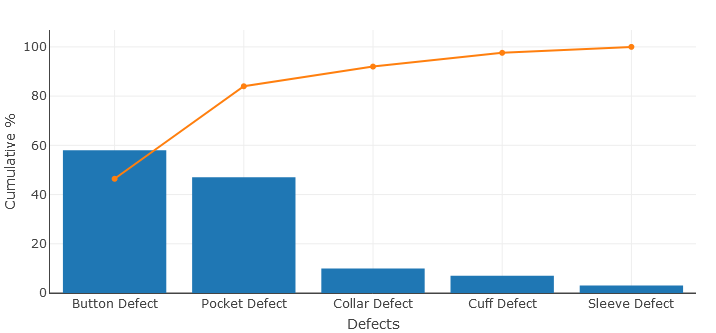
A Pareto Chart is a combination of a bar graph and a line graph. Each bar usually represents a type of defect or problem. The bars are presented in descending order from highest to shortest. So that, which defects are more frequent, can be seen at a glance. The height of the bar represents any important unit of measure and often presents the frequency of occurrence or cost. The line represents the cumulative percentage of defects.
Create your Pareto Chart
Just take a look at the following table of data to understand what cumulative percentage is.
| Type of Defect | Frequency of Defect | Cum. Frequency | Cumulative % |
|---|---|---|---|
| Button Defect | 58 | 58 | 46.4 |
| Pocket Defect | 47 | 105 | 84 |
| Collar Defect | 10 | 115 | 92 |
| Cuff Defect | 7 | 122 | 97.6 |
| Sleeve Defect | 3 | 125 | 100 |
Cumulative percentages indicate what percentage of all defects can be removed if the most important types of defects are solved.
In the example above, the CumFrequency% for Button Defect is simply (58/125)*100. The last cumulative percentage will always be 100% that is solving just the two most important types of defects — Button Defects and Pocket Defects (58+47 = 105 – will remove 84% of all defects.
In any Pareto Chart, for as long as the cumulative percentage line is steep, the types of defects have a significant cumulative effect. Therefore, it is worth fi1nding the cause of these types of defects and solving them. When the cumulative percentage line starts to flatten, the types of defects do not deserve as much attention, since solving them will not influence the outcome as much.
What is the Pareto Principle?
According to the Pareto Principle, 80% of the results are determined by 20% of the causes. Therefore, it is obvious to find 20% of defect types that are causing 80% of all defects. Although the 80/20 rule does not apply perfectly to the example above, focusing on just 2 types of defects (Button and Pocket) has the potential to remove the majority of all defects (66%).
How to create Pareto Chart in PHP
Now, we have a fair understanding of what the Pareto Chart is. When comes time to build Pareto Charts to analyze defects in your production lines, you should not have to open Excel or any other tool. The Dashboard Builder will create your Pareto Chart in PHP automatically in a few clicks.
CREATE TABLE pareto_pareto (
          Id INTEGER PRIMARY KEY,
          Defects TEXT NOT NULL,
          Frequency INTEGER
);
To insert data into a pareto table, you use the INSERT statement. SQLite provides various forms of the INSERT statements that allow you to insert a single row, multiple rows, and default values into a table. In the following example, we will be inserting our data into pareto table using multiple rows.
INSERT INTO pareto_pareto (Id, Defects, Frequency)
VALUES
          (1, "Button Defect", 58),
          (2, "Pocket Defect", 47),
          (3, "Collar Defect", 10),
          (4, "Cuff Defect", 7),
          (5, "Sleeve Defect", 3);
Now, use the following SQL statement to show the result
select * from pareto_pareto;
| Id | Defects | Frequency |
|---|---|---|
| 1 | Button Defect | 58 |
| 2 | Pocket Defect | 47 |
| 3 | Collar Defect | 10 |
| 4 | Cuff Defect | 7 |
| 5 | Sleeve Defect | 3 |
An example of pareto database in SQLite has been uploaded and available for downloading at this location.
STEP-1: Launch the Dashboard Builder application
Installation
- Download from https://dashboardbuilder.net/download-free-dashboard
- Place the files in a directory on the web server. e.g. …/www/dashboar/dbuilder/
- Unzip the file using Extract Here option to the root folder of "dashboardbuilder"
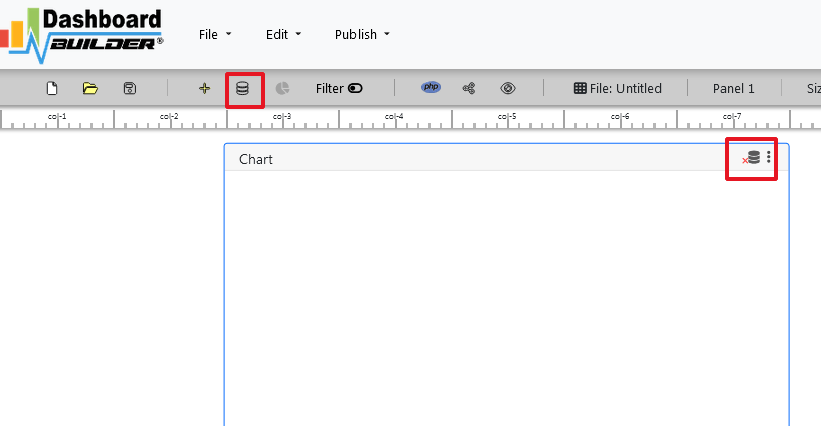
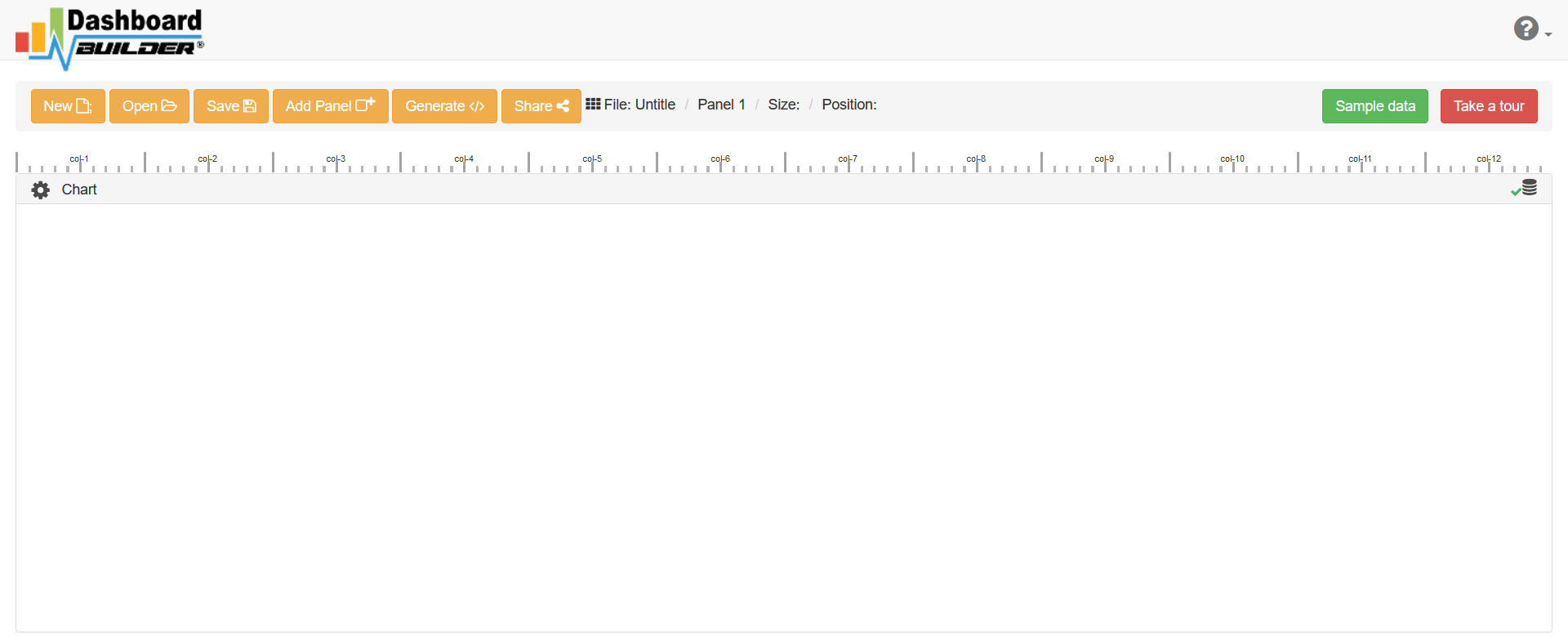
- Type the URL http://localhost/dashboardbuilder in your browser address bar to run dashboard builder. Following welcome screen will appear.
STEP-2: Connect with your database
On the above screen, click the Database icon following screen will appear:

In the above screen, select SQLite from the dropdown of Database list.
Enter your database, in this example we have copied the database in the data folder, so our database path is ../data/pareto.sqlite.
Now save the changes by clicking the “Save changes” button.
STEP-3: Retrieve data from your database
In the above screen, click the chart gear icon to open the chart designing tool. Now, insert the following query in the SQL editor box.
select A.Id, A.Defects, A.Frequency, SUM(B.Frequency)
as CumFrequency, SUM(B.Frequency)/(select SUM(Frequency)
from pareto_pareto)*100 as CumFrequencyPerc
from pareto_pareto A, pareto_pareto B
where A.Id>= B.Id group by A.Id, A.Frequency;
Now, hit the “Run Query” button.The following result will be generated:

STEP-4: Create Pareto Chart
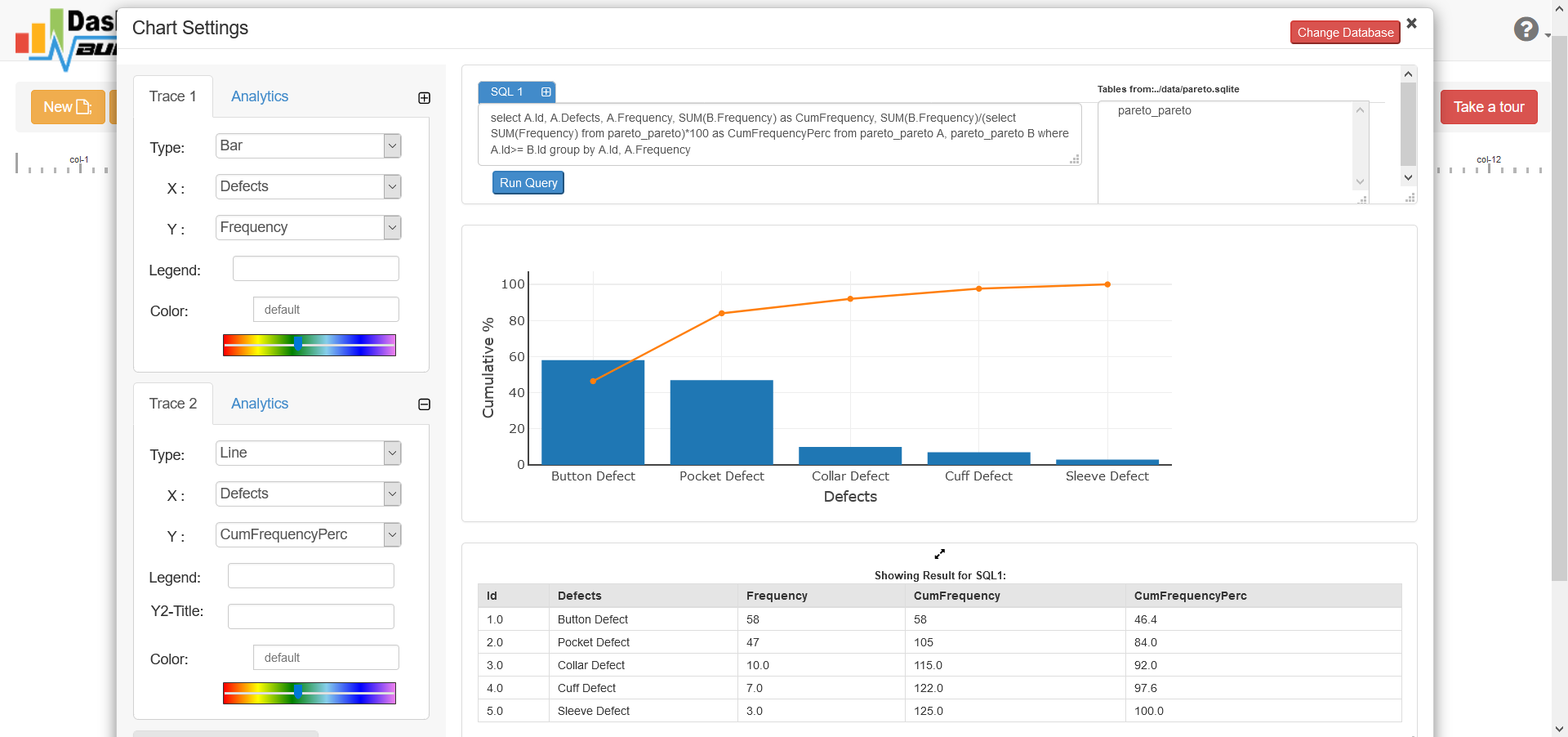
In this example, we will be using to trace, one is for bar chart and which will show the defect and other is line chart which will show the cumulative sum of the frequency.
Now, select Bar from the drop down list of chart type.
Select Defects for X axis and Frequency for Y axis
Our bar chart will show something like this
STEP-5: Save and Share your Pareto Chart
There is several ways you can share your dashboard such as
- Save as PNG by clicking the camera button and send via email attached or upload to any share drive.
- If you are using a public host then you can share your chart just clicking the share but, it will give you a share link for accessing your chart.
- Click the Generate button to generate PHP source code, you will get a window open with the PHP source code of your chart. This PHP code can be integrated your dashboard into any web application written in PHP or any PHP frameworks like Wordpress, Laravel, CodeIgniter, Joomla and others.
Click here to download complete project