How to install Dashboard Bulider in Joomla
This document helps you to understand how to install and configure Dashboard Builder in your Joomla website in easy steps.
Contents
Frequently asked questions
Requirements
- Joomla 3.8 or later
- Joomla 4.0 alpha or later
- Firefox 52, Chrome 57, IE 8 or later
Installation
- Download the extension from https://dashboardbuilder.net/joomla-extension
- Login to your Joomla admin
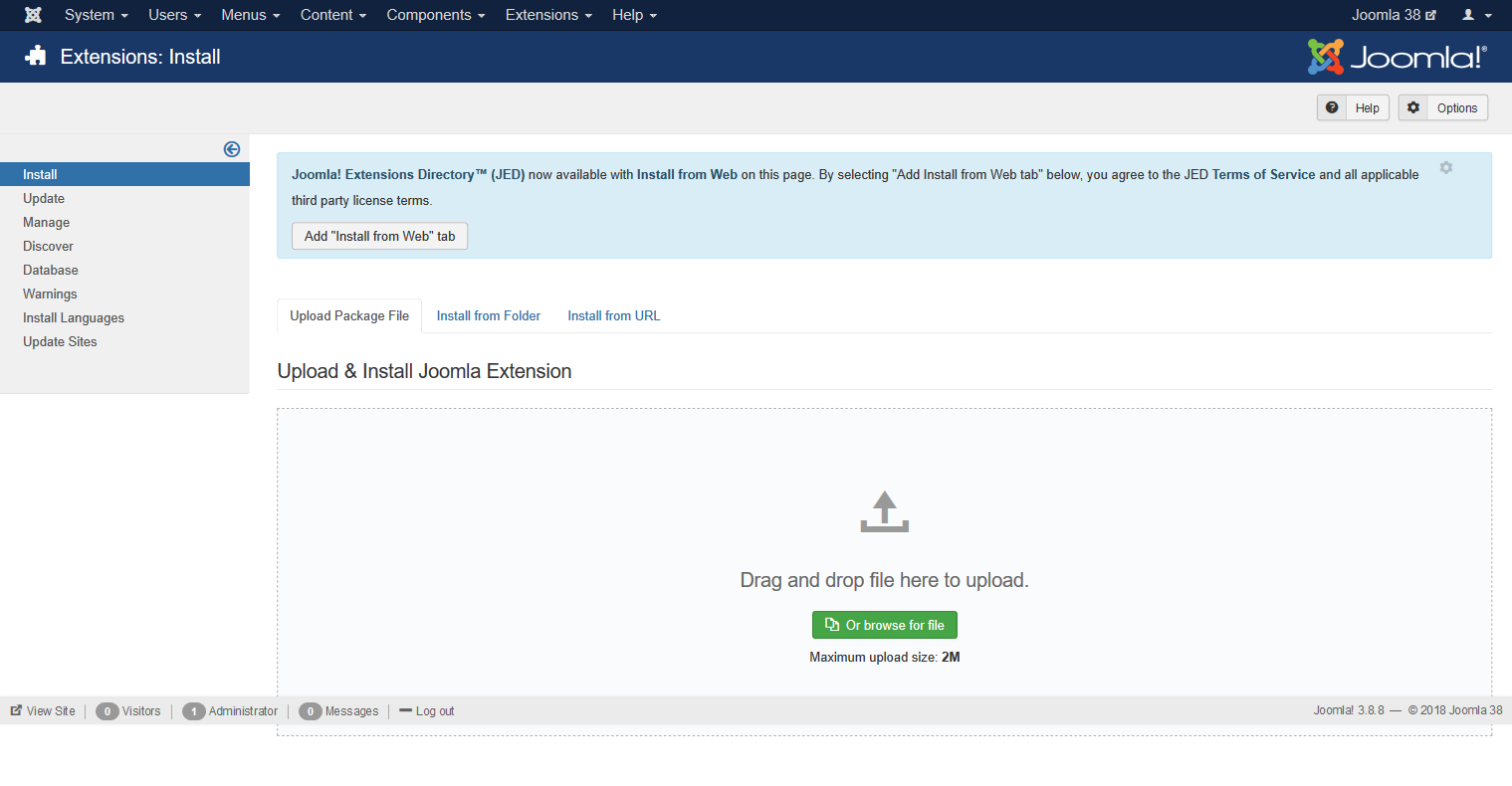
- Click Extensions ->Manage->Install. Following Screen will appear
- Brows mod_dashboardbuilder_j3_j4_v1.zip file
Create your first Dashboard
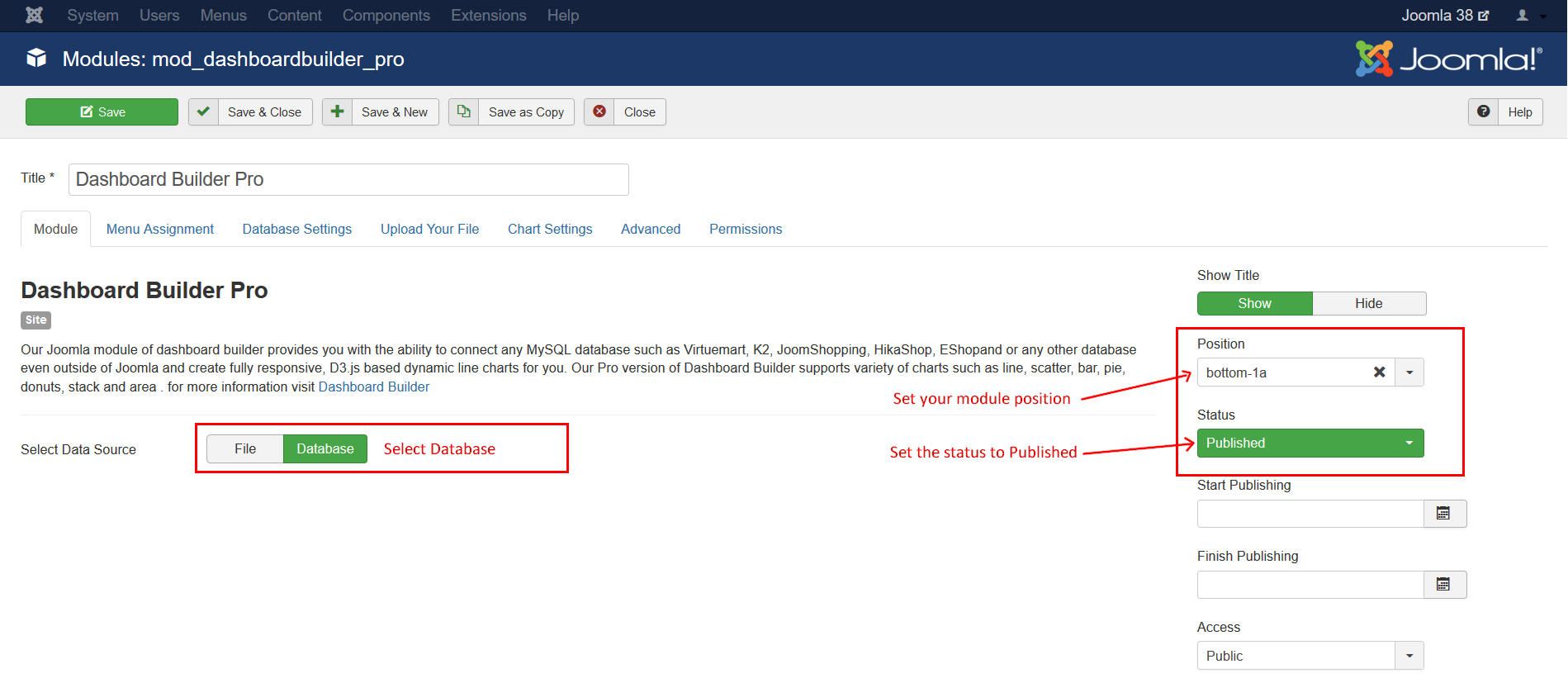
- Go to Extensions -> Modules
- Click Database in the following screen
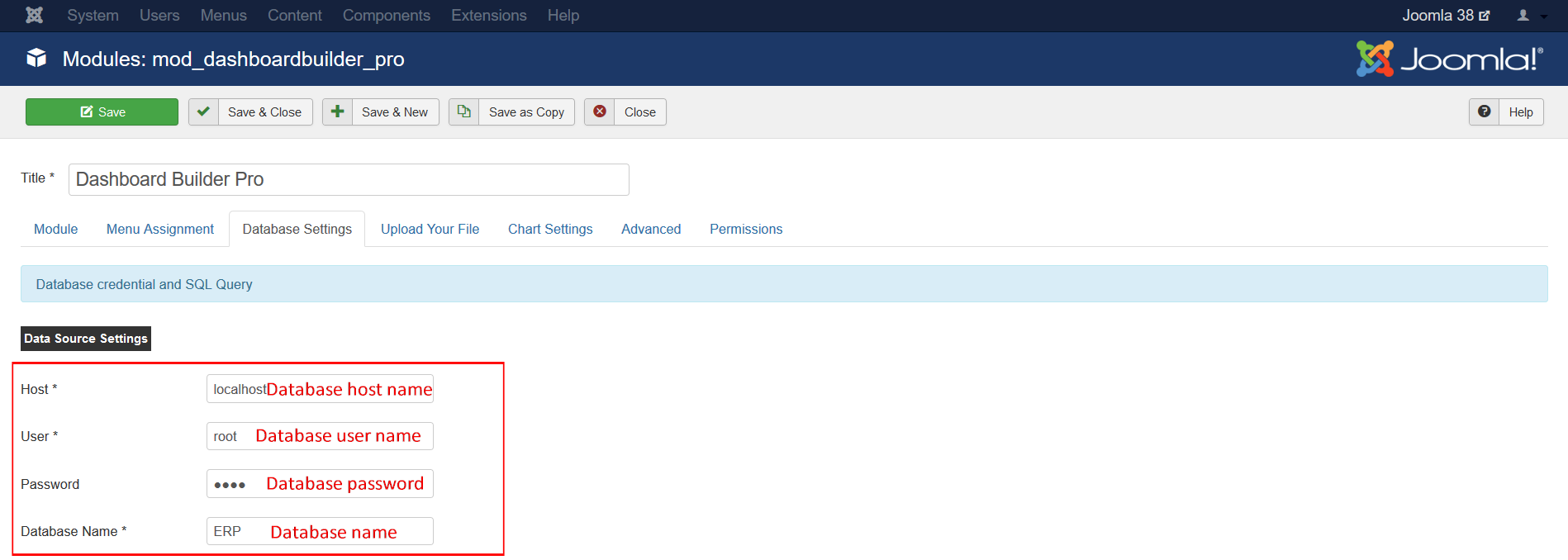
- Now, click on the Database Settings tab
- Following screen will appear
- Enter Host name, user name user password, and database name
- Change the status to Published, select your desired position and assign to your desired page under the tab Menu Assignment
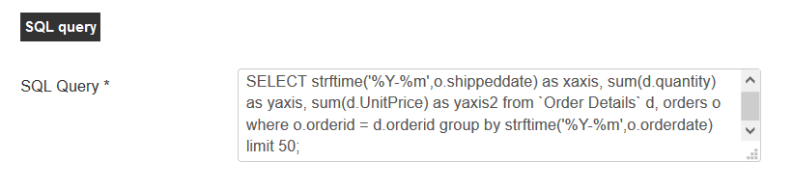
Write your custom SQL query:
Write your custom SQL query In the SQL Query text box
Fetch data from an Excel or CSV file
- Select File under the Module tab
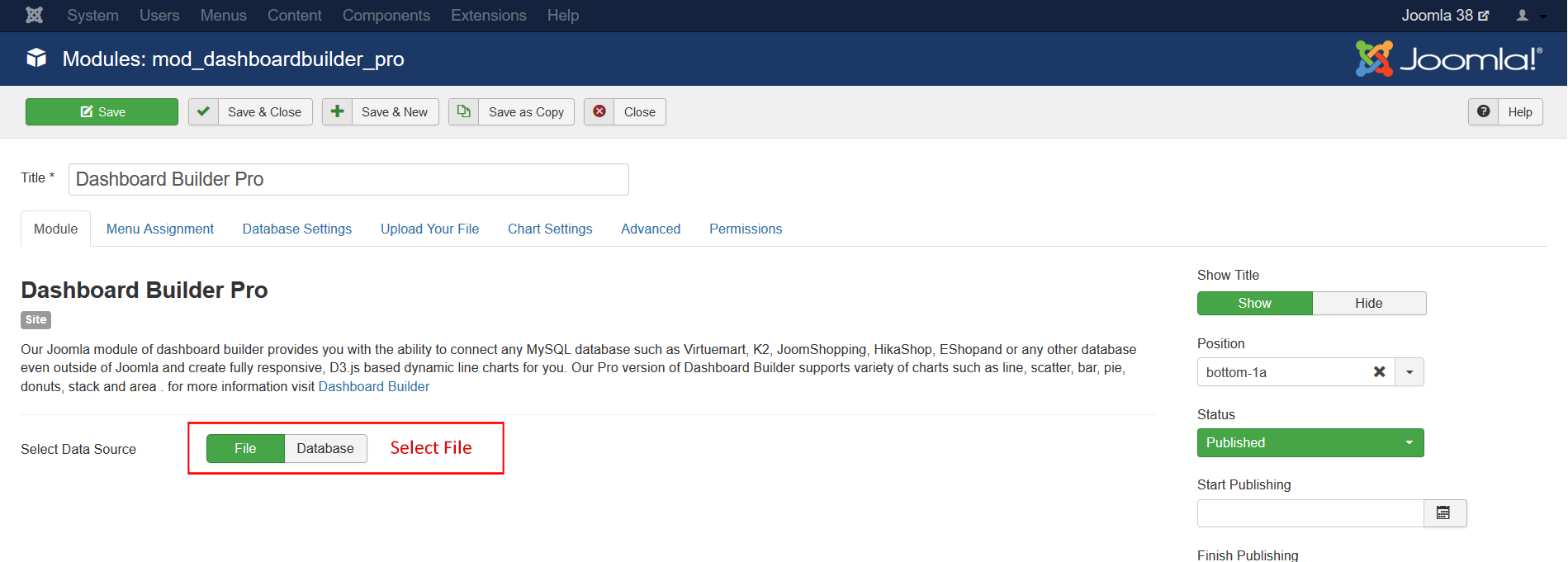
- Use any File Manager to upload your Excel or CSV file to the folder
/modules/mod_dashboardbuilder_pro/data/ - Select your file from drop-down list.
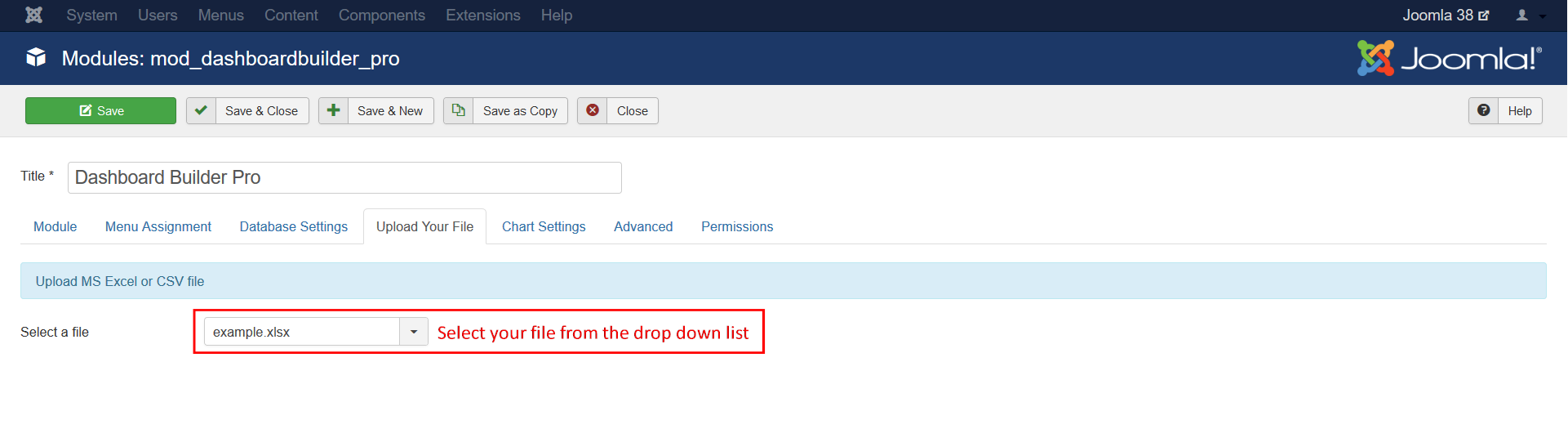
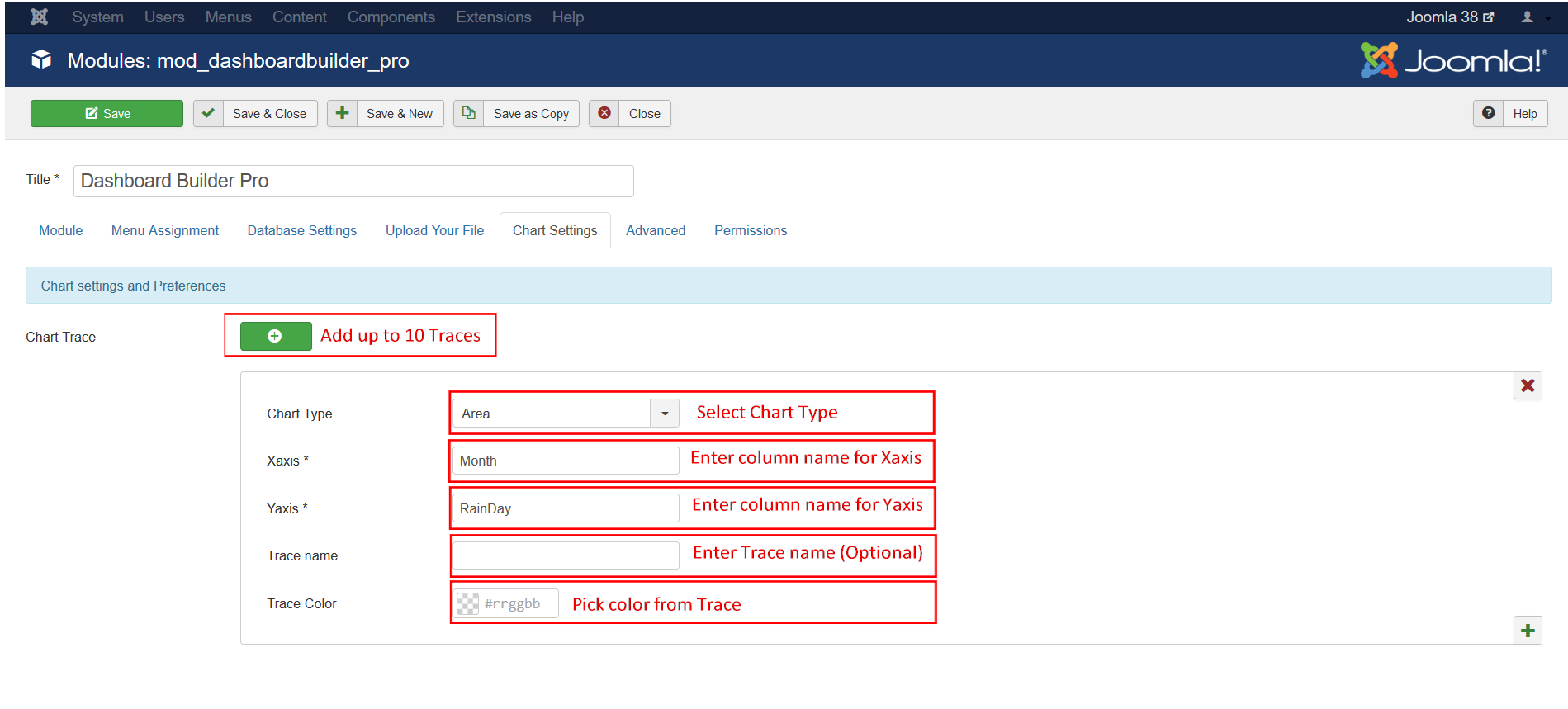
Under the Chart Settings Tab
- Select your chart type from the drop down list
- Enter your table, Excel or CSV’s column name in Xaxis filed
- Enter your table, Excel or CSV’s column name in Yaxis filed
- Enter your Trace name, this filed is an optional field.
- Select color from the color picker for Trace
Click (+) to add up to 10 Traces
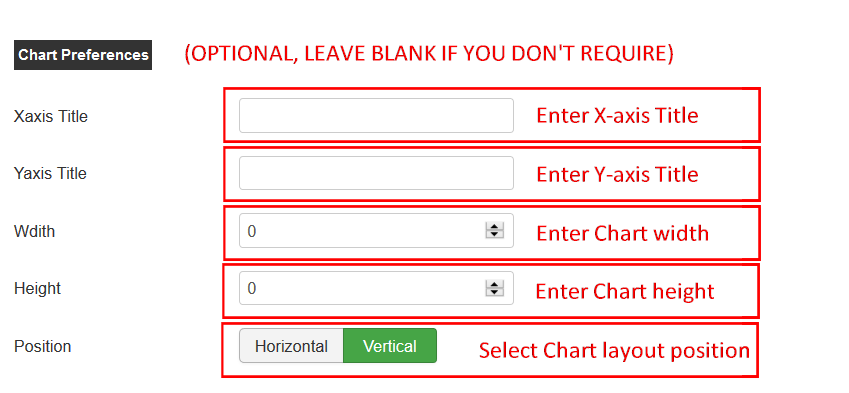
- Enter Title for Xaxis in Xaxis Title filed
- Enter Title for Yaxis in Yaxis Title filed
- Enter Chart width
- Enter Chart height
- Select chart layout position
Save your settings


