Google Sheets Dashboard: How to Build a Live Dashboard from Your Sheet
A Google Sheets dashboard is a single screen of charts, KPI tiles and tables built from the data in a Google Sheet, so you can see sales, expenses, inventory or any other metric at a glance instead of scrolling through rows. With Dashboard Builder, you connect your sheet once and the dashboard stays in sync: when the numbers in your sheet change, your charts change too.

Looking for Google’s account Dashboard? That page shows the data stored in your Google Account and lives at myaccount.google.com/dashboard. This guide is about building your own dashboard from Google Sheets data.
What Is a Google Sheets Dashboard?
Google Sheets is a great place to collect data, but a sheet with hundreds of rows is hard to read. A dashboard sits on top of that data and shows only what matters: totals, trends and comparisons, as charts and KPI cards on one screen.
Teams use Google Sheets dashboards to track sales by region, monthly expenses against budget, stock levels, marketing leads, project progress and more. Because the data already lives in a shared sheet, a dashboard is often the fastest way to give everyone the same, up-to-date view.
3 Ways to Build a Dashboard from Google Sheets
There are three common approaches. Which one fits depends on how many charts you need, who will view the dashboard, and where you want to show it.
| Charts inside Google Sheets | Looker Studio | Dashboard Builder | |
|---|---|---|---|
| Setup | Insert charts on a sheet tab | Google account, connect the sheet | Publish the sheet, paste one link |
| Updates | Live inside the sheet | Live | Real time from your sheet |
| Hosting | Google cloud | Your own server or our cloud | |
| Embed in your site or app | Limited | Embed code | PHP/HTML5 code for WordPress, Joomla, Laravel |
| Combine with databases | No | Yes, via connectors | Yes, 25+ databases plus Excel and CSV |
| Best for | A quick chart or two | Google-centric reporting | Live dashboards you embed or self-host |
If you only need one or two charts for yourself, Google Sheets’ own Insert › Chart menu is enough. If you want a full dashboard that you can share with a link, embed in your website or app, or run on your own server, Dashboard Builder is built for that.
How to Build a Live Google Sheets Dashboard (Step-by-Step)
Works with: the self-hosted (on-premises) edition and the cloud edition of Dashboard Builder.
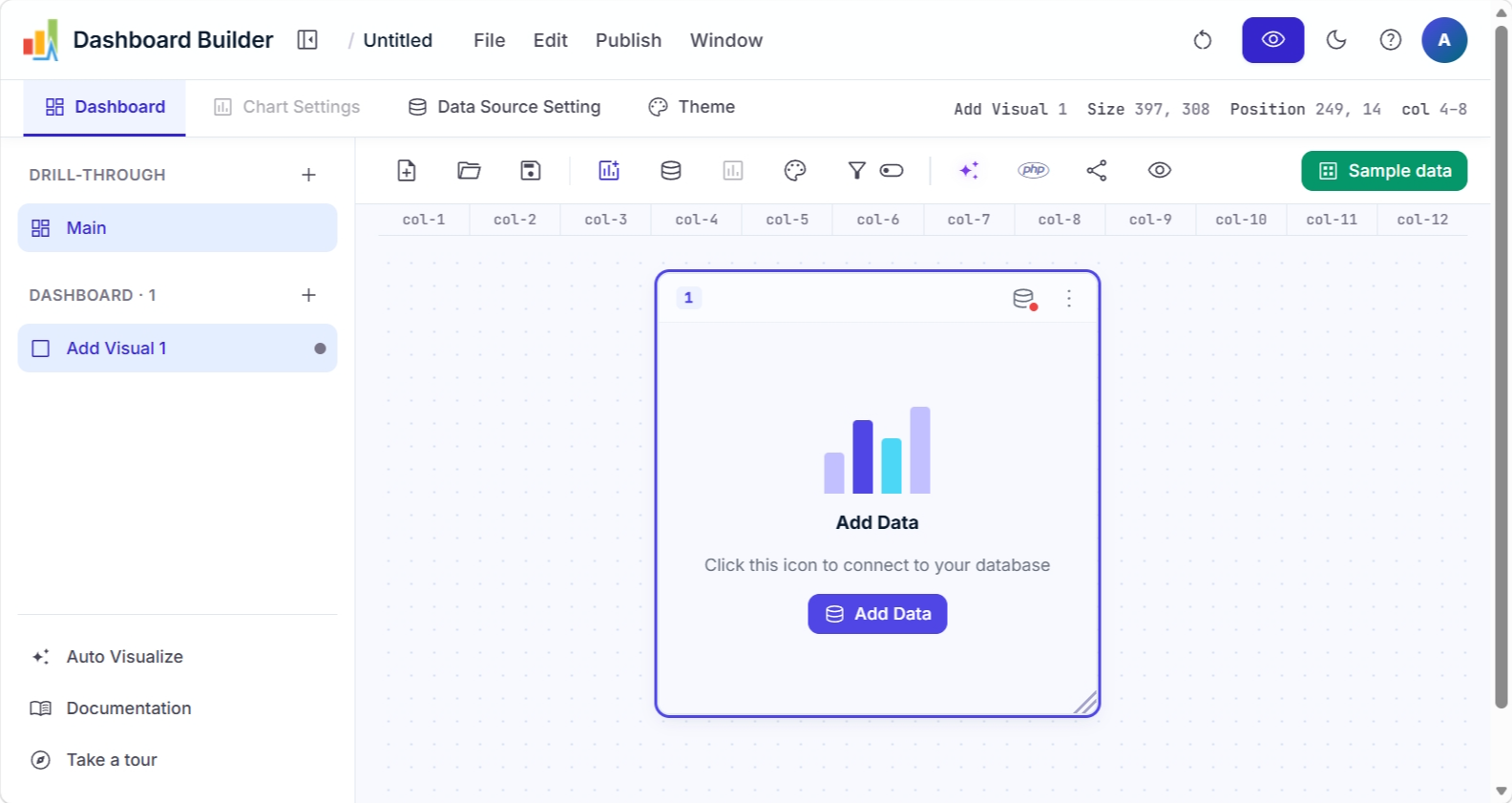
Open Dashboard Builder. Sign in to the cloud edition, or download the free edition, unzip it into a folder on your web server (for example …/www/dashboardbuilder/) and open it in your browser, e.g. http://localhost/dashboardbuilder. The welcome screen appears.
Publish your Google Sheet to the web. Open the spreadsheet in Google Sheets and go to File › Share › Publish to the web.

Choose the sheet (tab) you want to use and select Comma-separated values (.csv) as the format, then click Publish.

Copy the link that Google Sheets shows you.

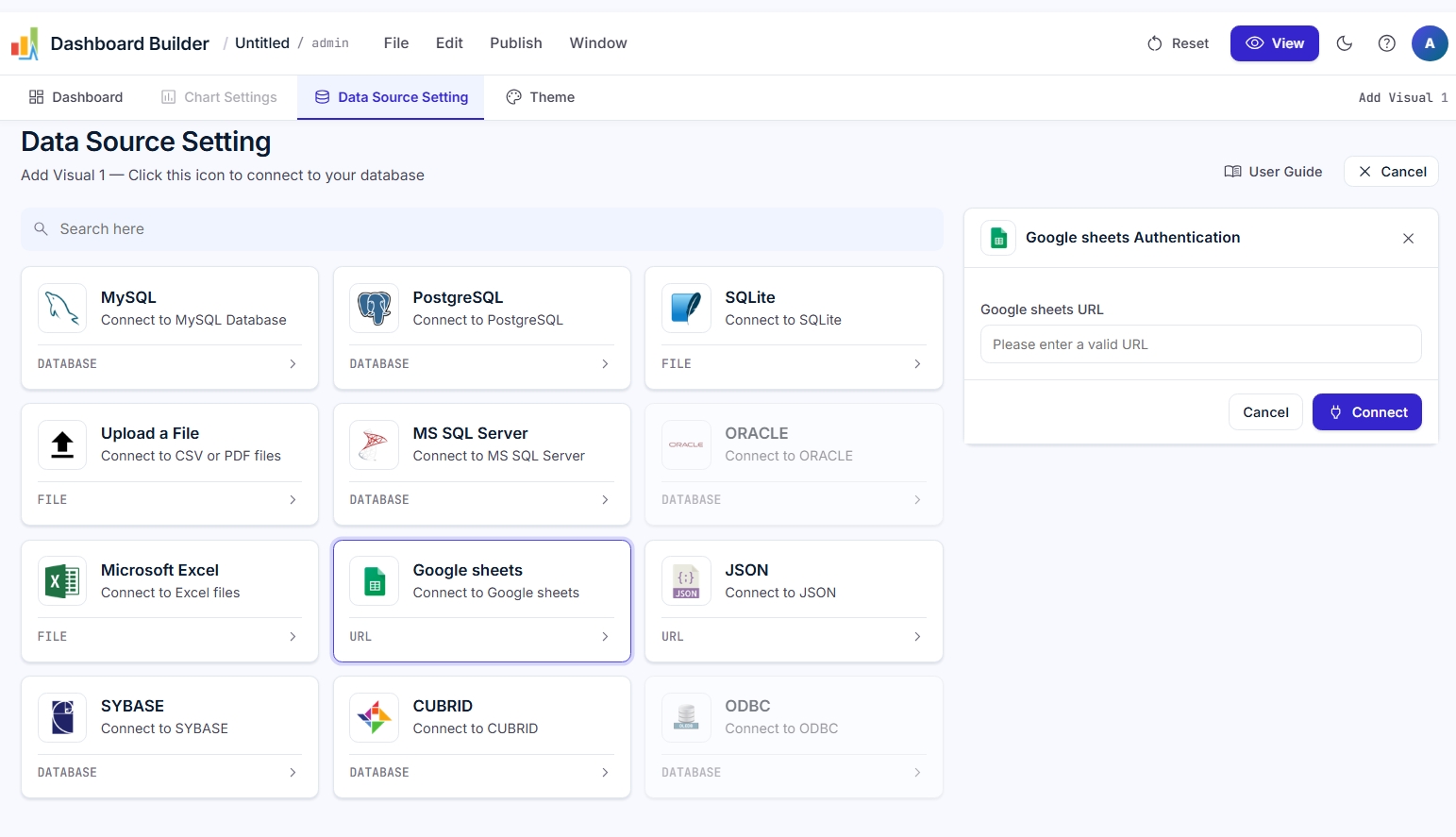
Connect the sheet to Dashboard Builder. Click the Database icon on the welcome screen and paste your Google Sheets link. Dashboard Builder reads the sheet directly, so there is nothing to download or re-upload.
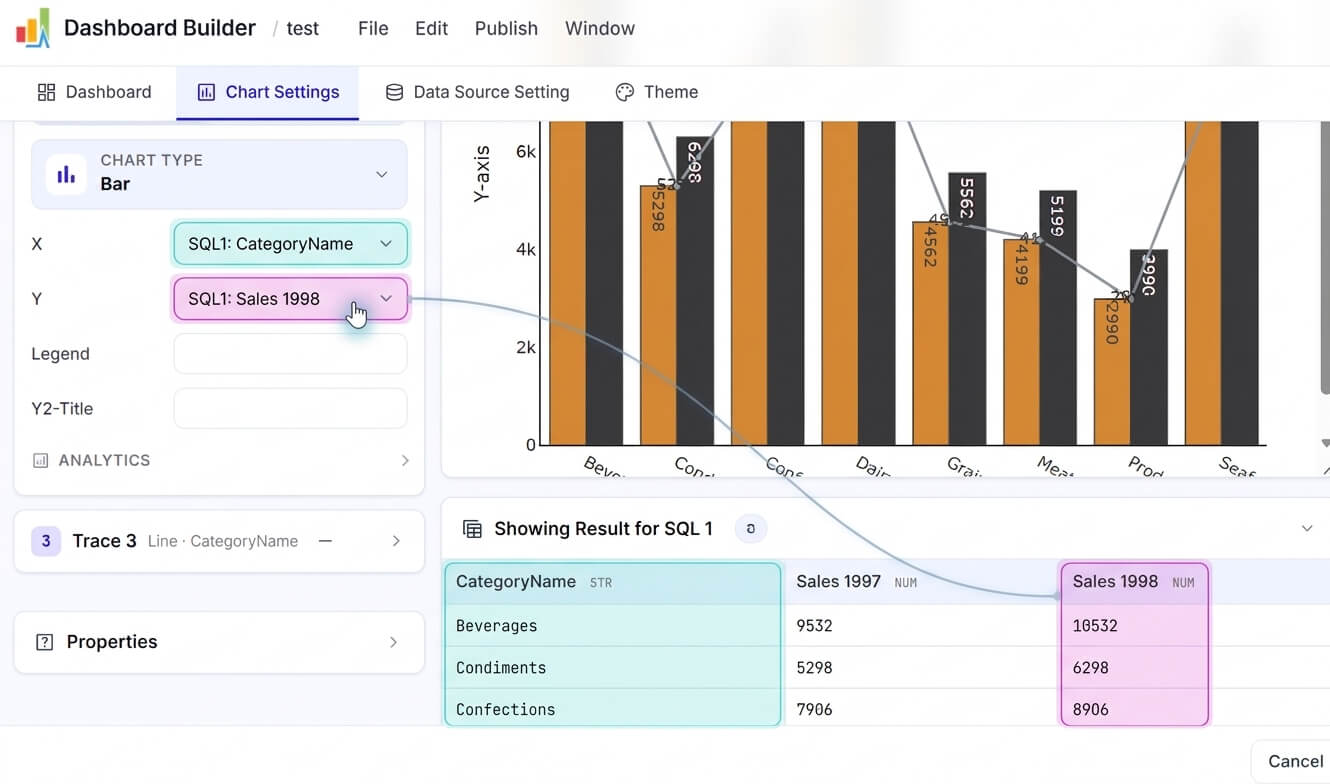
Build your charts. The data from your sheet appears. Choose the column for the X axis and the Y axis, pick a chart type such as Pie, Bar or Line, and click Save Changes. Repeat for each chart you want on the dashboard, and drag the panels to arrange the layout.
Share or embed it. Share the dashboard with a link in one click, or click Generate to get PHP/HTML5 code you can embed in WordPress, Joomla, Laravel or your own web app. Because the dashboard reads from your published sheet, it stays up to date in real time as the sheet changes.
Ready to try it? Download Dashboard Builder free or start in the cloud.
Tips for a Better Google Sheets Dashboard
Google Sheets Dashboard Examples
Common dashboards teams build from Google Sheets:
- Sales dashboard: revenue by month, sales by region and top products from an order log.
- Expense and budget dashboard: spending by category against budget, from a shared expenses sheet.
- Inventory dashboard: stock levels, low-stock items and reorder needs from a stock sheet.
- Marketing dashboard: leads by channel, cost per lead and campaign results from a tracking sheet.
- Project dashboard: tasks by status, owner and due date from a project tracker.
See more layouts in our dashboard examples, or browse 20+ KPI dashboard examples for ideas on what to track.
Have your data in Excel or CSV instead? Download your sheet as an Excel or CSV file and upload it to the free AI Dashboard Generator to get a complete dashboard automatically.


