Free AI Chart & Dashboard Generator: Turn Your Raw Data Into Charts Instantly — No Sign-Up Required
Drag & Drop your dataset here
or click to browse from your computer
From a raw spreadsheet or PDF to a complete dashboard in seconds

Most “free” AI dashboard tools still make you create an account before you can download anything. Dashboard Builder’s AI Dashboard Generator doesn’t. Upload a CSV, Excel file, or a PDF with a table in it, then choose how you want to work:
- Auto mode: the AI analyzes your file and builds a complete dashboard in seconds, with 4 KPI cards, 6 charts and a Key Insights panel that explains what stands out in your data.
- Chat mode: type what you want in plain English, such as “Generate a pie chart to show age and income”, and it creates that chart from your data.
No sign-up, no credit card, and no watermark on the free tier to generate and download. If you want to keep editing your dashboard later, sign up to save it in your control panel.
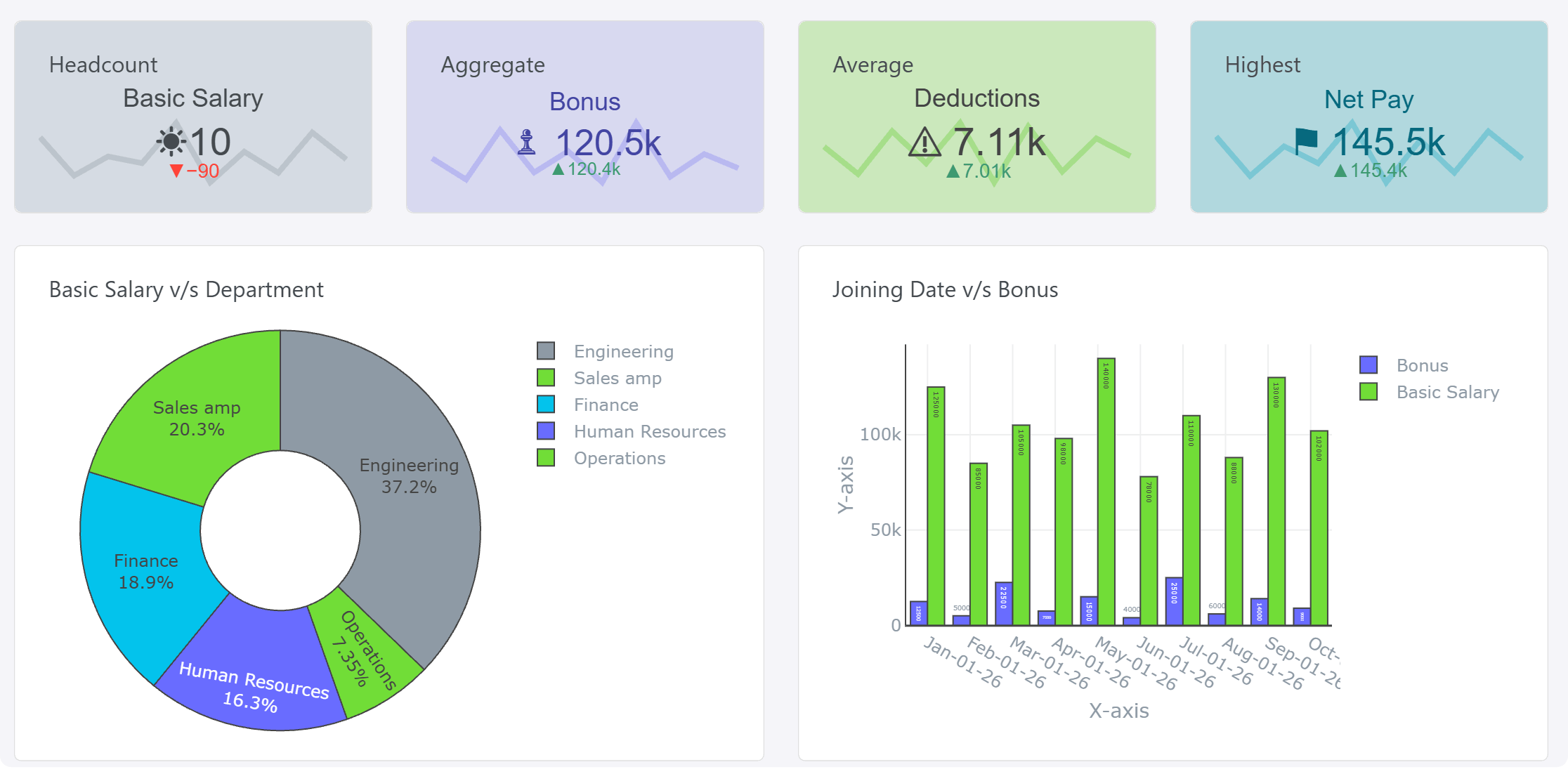
What Is an AI Dashboard Generator?
An AI dashboard generator takes raw data, such as a spreadsheet, a CSV or a table inside a PDF, and decides how to visualize it. It picks the KPIs, chart types, colors, labels and layout for you, so you don’t build each chart cell by cell. Instead of choosing axes and formatting legends by hand in Excel, you upload your data and either let the AI build the whole dashboard or ask it for the exact chart you need. You can then change the chart types, colors and titles to suit.

The stakes of getting this right are higher than they look. Charts built from business data often feed real decisions, not just decorate a slide. A chart that’s easy to misread — or that quietly buries a trend under bad color choices — can send a decision the wrong way just as easily as bad data can.
How Our Free AI Dashboard Generator Works
Applies to: On-premises ✅ Online ✅ Desktop ✅
No account, no email verification, no trial that expires — you can generate and download a dashboard anonymously. To keep editing it and come back to it later, sign up and save it to your control panel.
Upload your data. Drop in a CSV, Excel (.xlsx / .xls), or a PDF file with a table in it.
Pick Auto mode or Chat mode. In Auto mode, the AI reads your data and builds a complete dashboard with 4 KPI cards and 6 charts, choosing line, bar, pie or other chart types based on whether each field is a trend, a comparison or a part-to-whole breakdown. In Chat mode, type a prompt such as “Generate a pie chart to show age and income” and it builds that one chart. You can override any choice.

Customize colors, labels, and legend. Adjust the palette, axis labels, and title, or apply one of Dashboard Builder’s saved color themes for brand consistency.
Download instantly — PNG, PDF, HTML, PHP, Laravel, WordPress plugin or Joomla plugin. No watermark, no locked export tier,
Import From CSV, Excel, or PDF — No Reformatting Needed
Most AI chart tools only accept CSV or a pasted table. Dashboard Builder’s AI Dashboard Generator also reads data straight out of PDFs, which matters if your numbers live in a scanned report, an invoice, or a document someone emailed you rather than a tidy spreadsheet.
If your data needs cleaning first — merged cells, inconsistent date formats, stray totals rows — the AI flags likely issues before charting so you’re not debugging a chart that’s actually a data problem.
How to Choose the Right Chart Type
In Auto mode the AI picks chart types for you, but it helps to know the reasoning so you can override it when your case is unusual. As a rule of thumb, let what you’re trying to show — not the data’s shape alone — decide the chart:
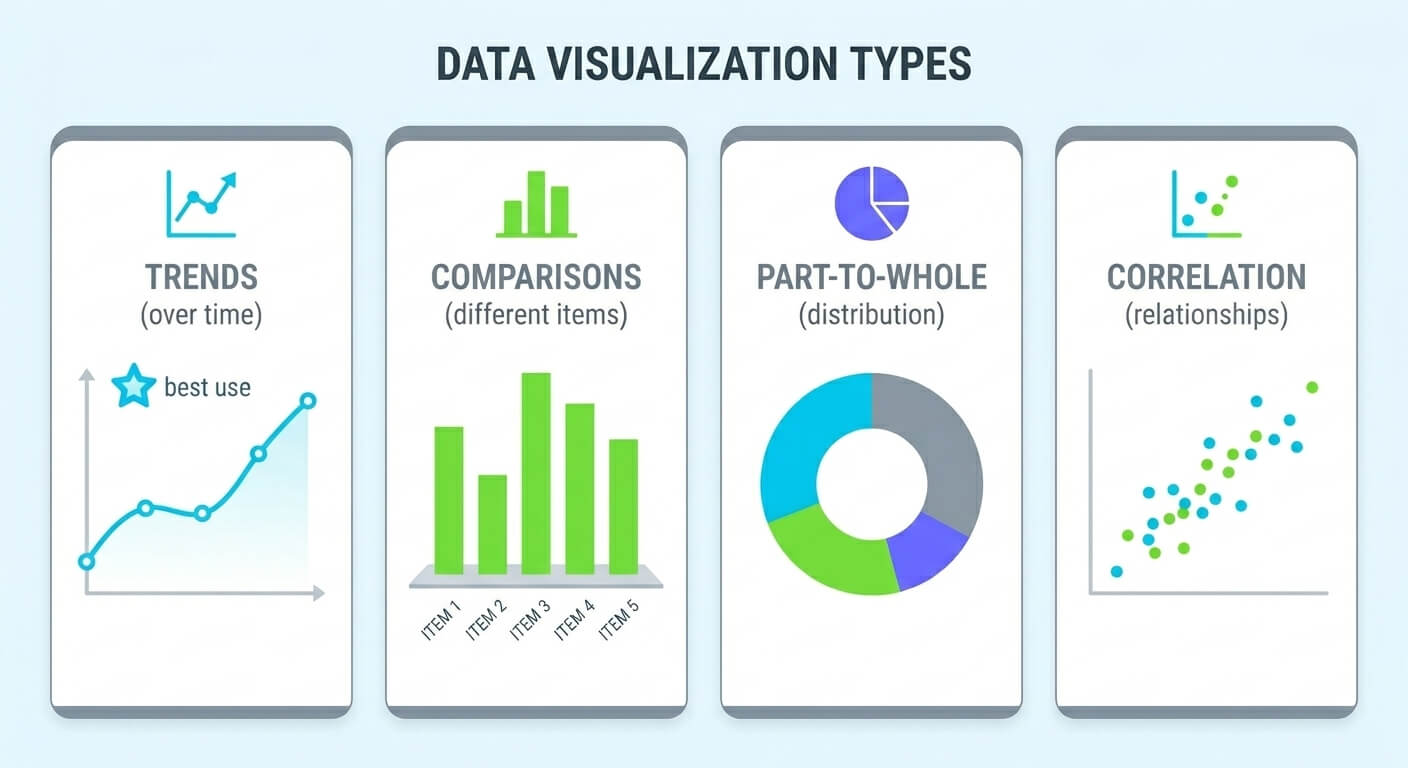
6 Chart Design Mistakes That Confuse Readers
Truncated y-axis. Starting the y-axis at a number other than zero on a bar chart exaggerates small differences and can mislead readers about the actual size of a change.
Too many colors in one chart. Past 6–7 distinct series, most readers can no longer reliably match a color in the legend back to a bar or line.
Using a pie chart for too many categories. Once you’re past 5 slices, a pie chart turns into a guessing game. Switch to a horizontal bar chart instead.
3D effects on 2D data. 3D bar and pie charts distort the actual proportions due to perspective, making values look larger or smaller than they are.
No data labels on precise figures. If the exact number matters (a budget, a target), label it directly on the chart instead of making readers estimate from the axis.
Ignoring colorblind accessibility. Red-green palettes are indistinguishable to some readers. Use Dashboard Builder’s built-in colorblind-safe palettes or pair colors with patterns or labels.
Dashboard Builder vs. Excel vs. Other AI Tools
Every tool here can produce a decent chart. The differences show up in how much friction is between your data and the finished chart.
| Features | Dashboard Builder AI | Excel / Google Sheets | Typical AI Design Tools |
|---|---|---|---|
| Sign-up required | No (only to save & edit later) | No (if already installed) | Usually, before export |
| Free to use | Yes, full charting | Yes, if you own a license | Often limited/watermarked |
| Imports CSV | Yes | Yes | Usually |
| Imports Excel | Yes | Native | Sometimes |
| Imports PDF tables | Yes | No | Rarely |
| Builds a full dashboard automatically | Yes (4 KPIs + 6 charts) | No (manual) | Rarely |
| Best for | Fast, data-first charts & dashboards | Deep spreadsheet analysis | Highly stylized, presentation-first visuals |
If your priority is polished, presentation-style infographics with heavy branding, a design-first tool may still suit you better. If your priority is getting from a spreadsheet or PDF report to an accurate chart with the least friction, that’s what Dashboard Builder’s AI Dashboard Generator is built for.
Rated by Dashboard Builder Users
★★★★★
5.0 / 5 — based on 12 reviews